
How to Build LinkedIn Ad Targeting That Converts
Most teams target LinkedIn ads based on who looks right on paper. Common Room's LinkedIn Ads feature targets who's actually showing up.
Overview
Most ad spend chases static lists and third-party intent data that nobody can verify, until now, thanks to Common Room's LinkedIn Ads feature:
- Buyer intelligence builds the audience, so targeting reflects real signals instead of guesswork
- Live sync keeps the list current, adding and removing members as fit changes
- Engagement feeds back into Common Room, so every click and form fill sharpens the next round of targeting
- Overview
- Step 1: Connect your LinkedIn account to Common Room
- Step 2: Create ad targeting segment
- Step 3: Push the segment as a matched audience
- Step 4: Automatically run ads against dynamic, highly targeted audiences
- Zapier
- Alternate Step 1: Build audience creation Zap
- Alternate Step 2: Create ad targeting segment as normal
- Alternate Step 3: Create webhook workflow
- Alternate Step 4: Automatically run ads against dynamic, highly targeted audiences
- Wrapping Up
- FAQs
Pipeline powered by buyer intelligence.
Request demoGetting Started
Most ad targeting is done based on fit criteria, retargeting pixels, and hard-to-verify third-party intent data.
It can help you narrow your scope, but there’s little way of knowing whether your ad spend is going to the precise potential buyers you want it to.
Until now, that is.
In this playbook, we’ll show you two ways to automate LinkedIn ad targeting based on buying signals and buyer fit to increase conversions and boost return on ad spend.
What you’ll need:
Common RoomWith the Common Room LinkedIn Ads feature, we can create dynamic target audiences based on buying signals and fit criteria, then push those audiences to LinkedIn as a live Matched Audiences that adds and removes members as signals change, syncing at a configurable cadence. Request a demo to follow along.
This is how we’ll serve up our ads to the right buyers. We’ll be using a LinkedIn Ads account. We’ll need to be assigned as both the Account Manager or Campaign Manager on our account, as well as the Company Page Admin or Lead Gen Forms Manager. Check out our integration docs for step-by-step directions on how to connect LinkedIn to Common Room, or book a demo.
Step 1: Connect your LinkedIn account to Common Room
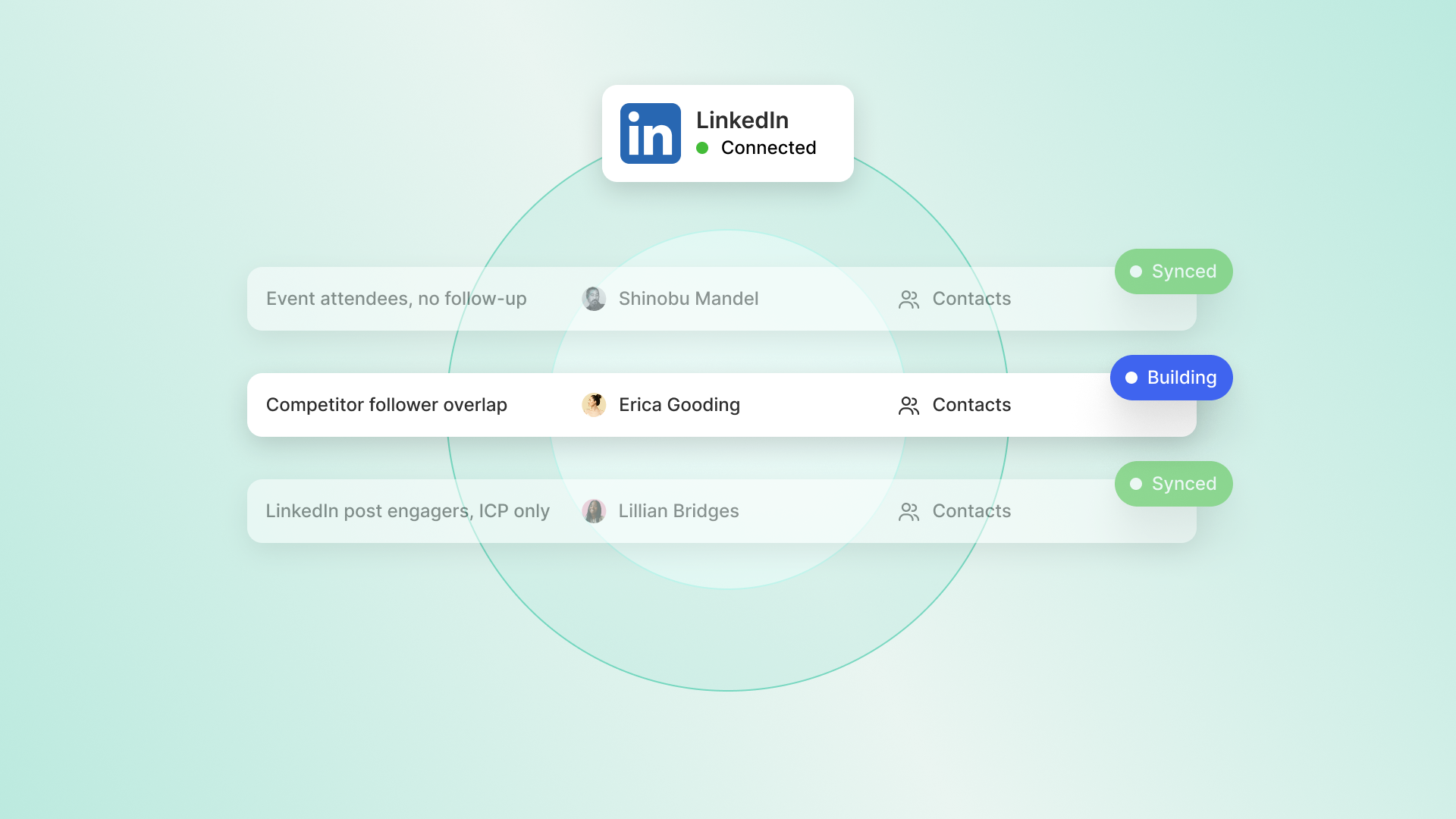
To start using LinkedIn with Common Room, first you'll need to connect them. It's very straightforward.
• Go to Settings → LinkedIn settings page
• Open the LinkedIn Ads tab
• Authorize Common Room and select the Campaign Manager ad account you want to connect
• Wait for the first import to complete. This process usually takes a few hours, but it should go faster once you've connected your account.
Step 2: Create ad targeting segment
Log in to Common Room and navigate to Segments.

Common Room’s segments feature allows you to automatically add individuals or organizations to auto-replenishing lists based on customizable criteria. This makes it easy to quickly surface, monitor, and engage specific people and companies at scale.
We can create a segment for contacts based on any combination of buying signals and fit criteria we want, from website visits, product usage, and social engagements to job title, industry, and annual revenue.
Every unique signal and firmographic detail—as well as associated volume—is at our fingertips.
We can also score accounts based on person- and account-level signals and fit criteria, trigger an automation in Common Room to find high-fit prospects associated with that account, and add them to any segment we want automatically.
ProspectorCommon Room’s Prospector feature allows you to search through a proprietary, constantly refreshed database of more than 200 million B2B contacts and organizations, surface prospects and companies based on custom criteria, and automatically add individuals as contacts—even if they’re not currently engaging with your organization on any connected channels or tracked in your CRM.
We can experiment with different signals to identify which ones correlate with stronger intent, then build out more robust retargeting to align our ad budget, creative, and CTAs with the degree of intent implicit within each signal.
Keep in mind that the minimum audience size for a LinkedIn Ads audience needs to be greater or equal to 300 contacts. We can’t run campaigns on anything smaller.
In this example, we’ll focus on socially engaged prospects—economic buyers who have reacted to or commented on our LinkedIn content, are not current customers or competitors, and who fit our firmographic criteria for company and role.
We’d click New segment, select Create new segment for contacts, and add our filters.

Common Room’s filters feature allows you to highlight individuals and organizations based on any combination of factors. This makes it easy to surface specific people and companies based on firmographic details, cross-channel activities, product usage, and more.
Once we click Save, our segment will be auto-populated with every person tracked in our digital ecosystem who matches our criteria.
Common Room’s AI-powered identity resolution and waterfall enrichment engine—Person360™—will automatically reveal the people and accounts behind buying signals.
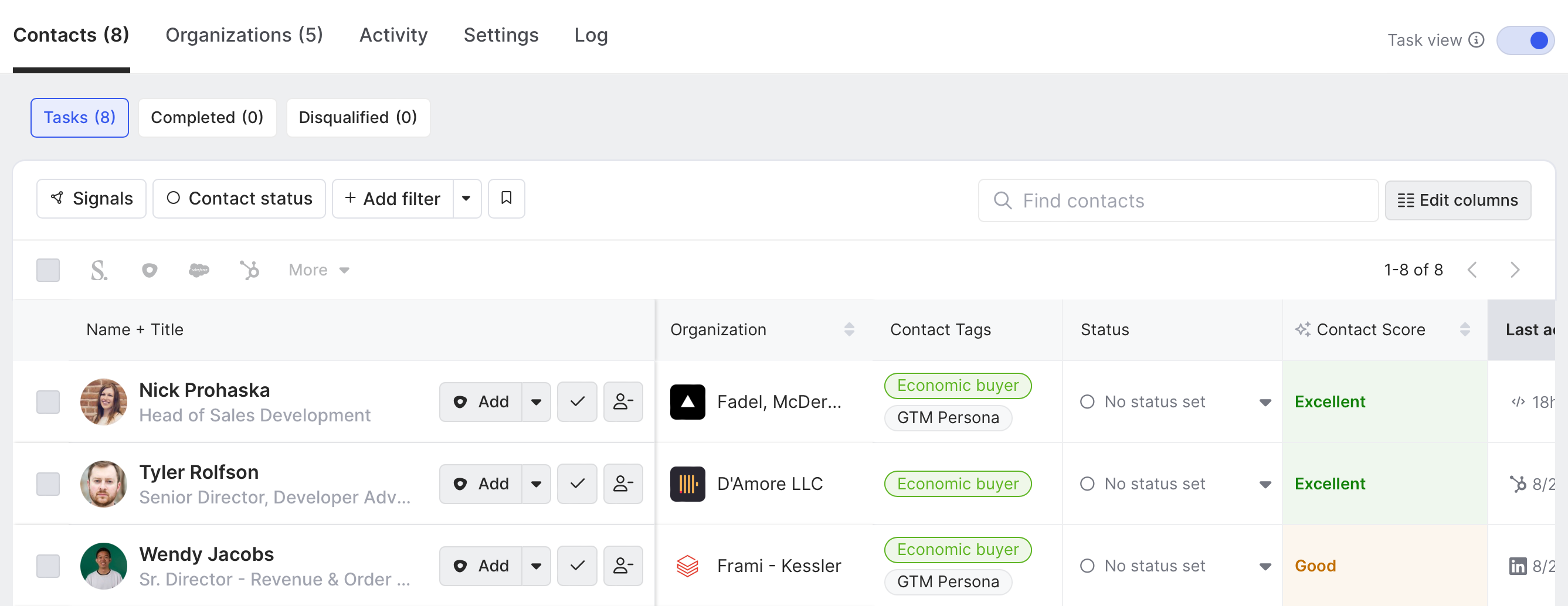
Common Room’s Person360 feature allows you to deanonymize, merge, and enrich signals from every channel connected to Common Room. This makes it easy to reveal the identity, intent, and context of every buyer and customer.
Now that our segment is good to go, let’s make sure we can serve up the right ads to the right buyers on autopilot, whether that's through our native Linkedin Ads feature or through our Zapier workaround.
Step 3: Push the segment as a matched audience
In Common Room, navigate to the Ads Audiences menu, then select the segment you want to push.
First you'll choose whether you're pushing a company- or person-matched audience, then you'll set a sync cadence.
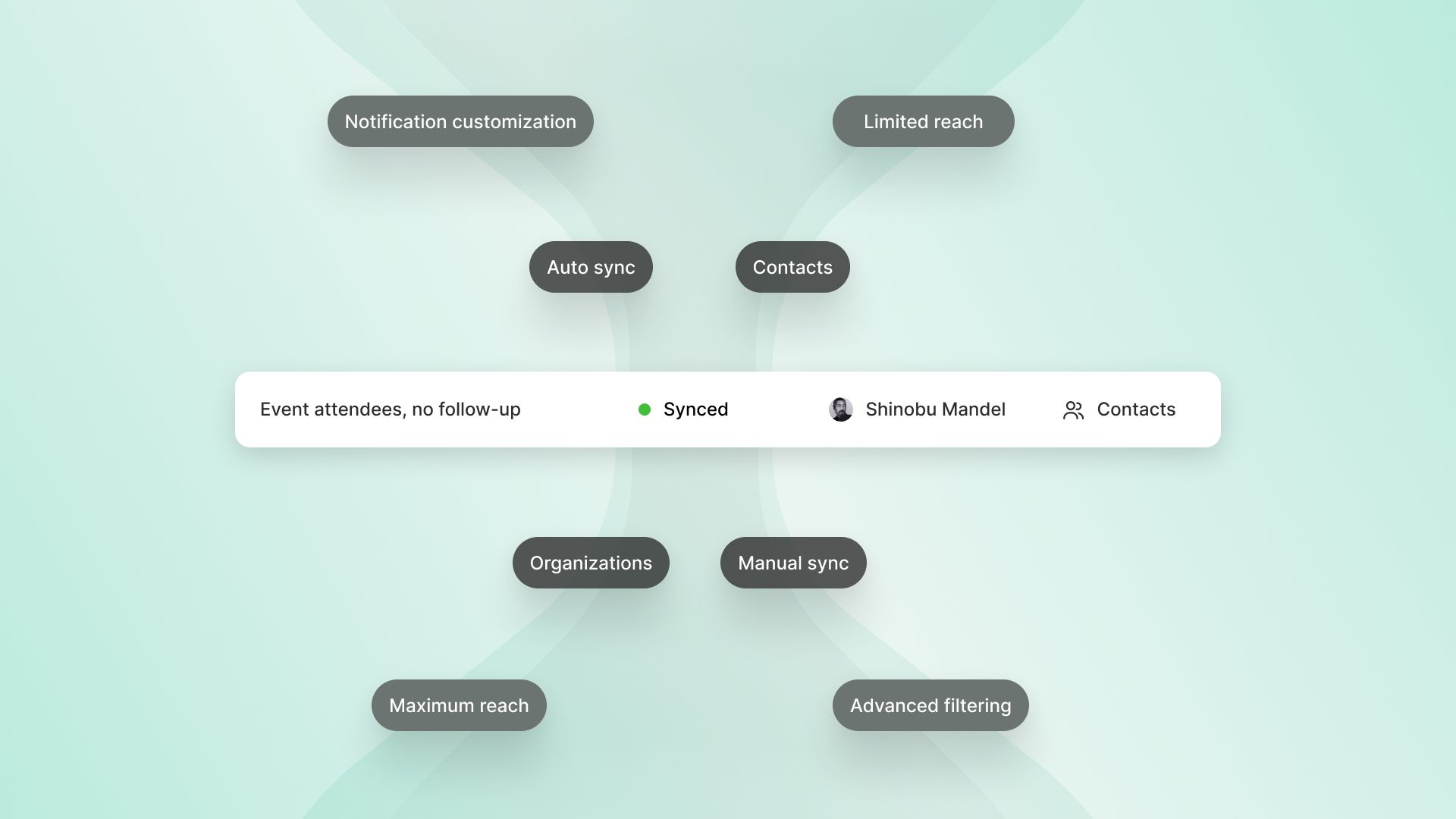
With our native LinkedIn Ads feature, the audience you push updates automatically, adding and removing members as contacts enter or leave the segment criteria.
It'll also continuously feed engagement information (clicks, likes, shares, etc) back to Common Room to further enrich your contact list. As you can see, no only is this the easier set-up, it also has other benefits for the rest of the sales motion.
Step 4: Automatically run ads against dynamic, highly targeted audiences
We can now go to our LinkedIn Ads account and see the audiences we've synced into LinkedIn from Common Room's LinkedIn Ads feature.
Here, you can also see match-coverage views, so you can see field readiness before you push a campaign. You'll also get sync health and notifications that help flag errors or undersized audiences, so you're not pushing campaigns without full context.
Please note: Syncing will likely take a few days, but we should expect to see 70-85% match rates based on the info from Common Room.

From here we can spin up net-new LinkedIn campaigns that include our Common Room segment within the campaign targeting criteria or we can add the segment to the targeting criteria within an existing campaign.
Either way, we’re now serving up ads to high-intent audiences based on all the signals and fit criteria captured in Common Room.
If you don't have the LinkedIn Ads feature, you can still build audiences based on your Common Room data. The workflow is just a little more involved.
Without the LinkedIn Ads feature, you must push contacts from Common Room to your LinkedIn Ads account via Zapier, your audiences must be created by Zapier. We know—a bit quirky, but it works!
Alternate Step 1: Build audience creation Zap
If you don't have the Linkedin Ads feature in Common Room, there's another way you can connect to Linkedin Ads: through our integration with Zapier. Please note that while this integration will help you build audiences for LinkedIn Ads in Common Room, it will not get you the same learning loop capabilities as the LinkedIn Ads feature itself. We recommend that if you're regularly using Common Room to build LI audiences, you get the LinkedIn Ads feature rather than relying on this integration.
Here's what you'll need, in addition to Common Room and LI Ads:
This is how we’ll connect the dots between Common Room and LinkedIn, if you don’t already have the LinkedIn Ads feature. We’ll need access to Zapier’s Professional plan or higher in this case. Check out our integration docs for step-by-step directions on how to connect Zapier to Common Room and explore other custom data source options.
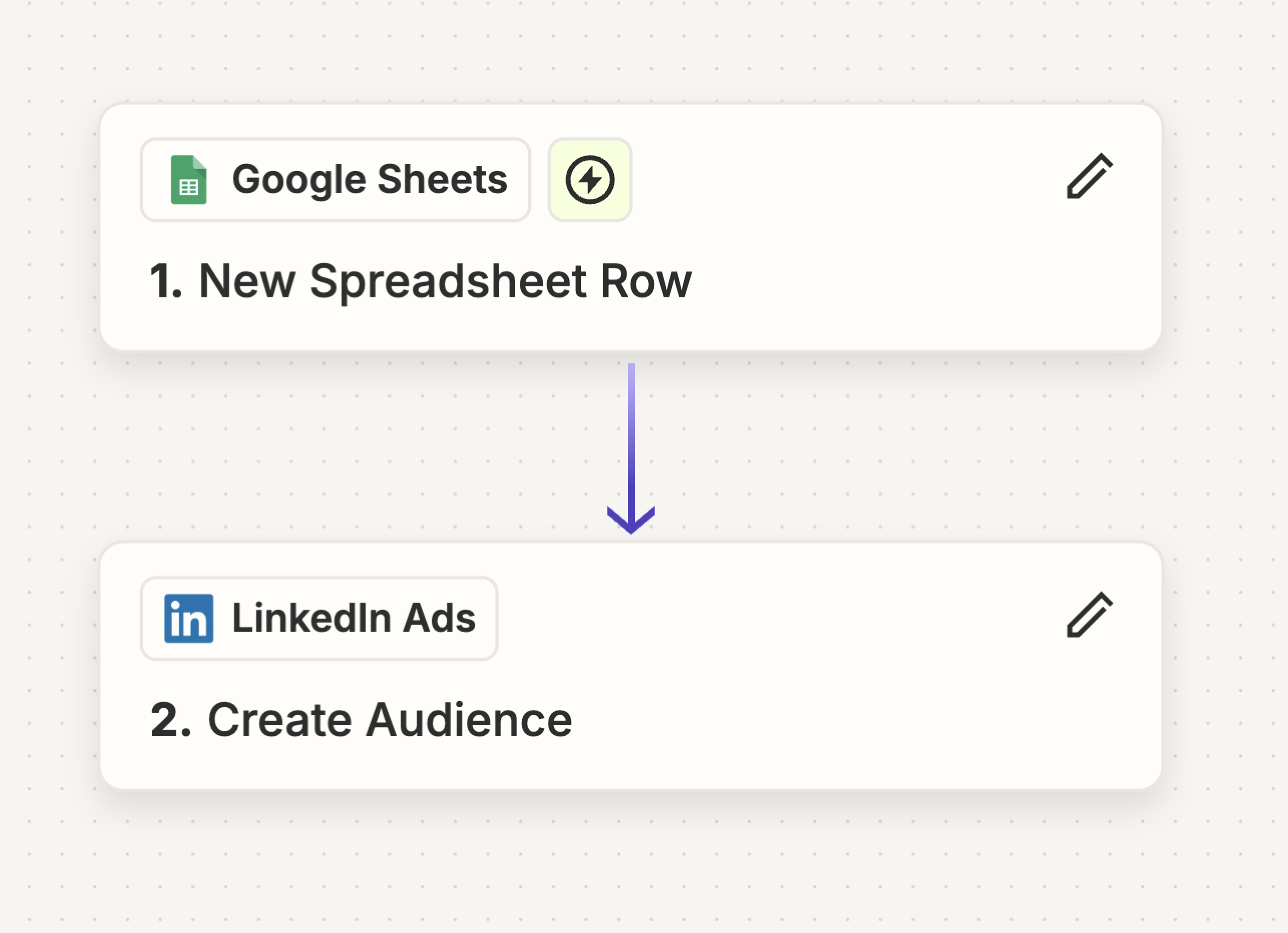
First, we need to create a task automation—or Zap—in Zapier to create our LinkedIn Ads audiences.
In this case, we’d use a Google Sheet as our trigger.
We can populate the spreadsheet with audience names and descriptions either directly or via Google Form.

We’d connect our Google Sheet to Zapier and choose New Spreadsheet Row as our trigger event. This way each time we update our spreadsheet, a new audience will be created in our LinkedIn Ads account.
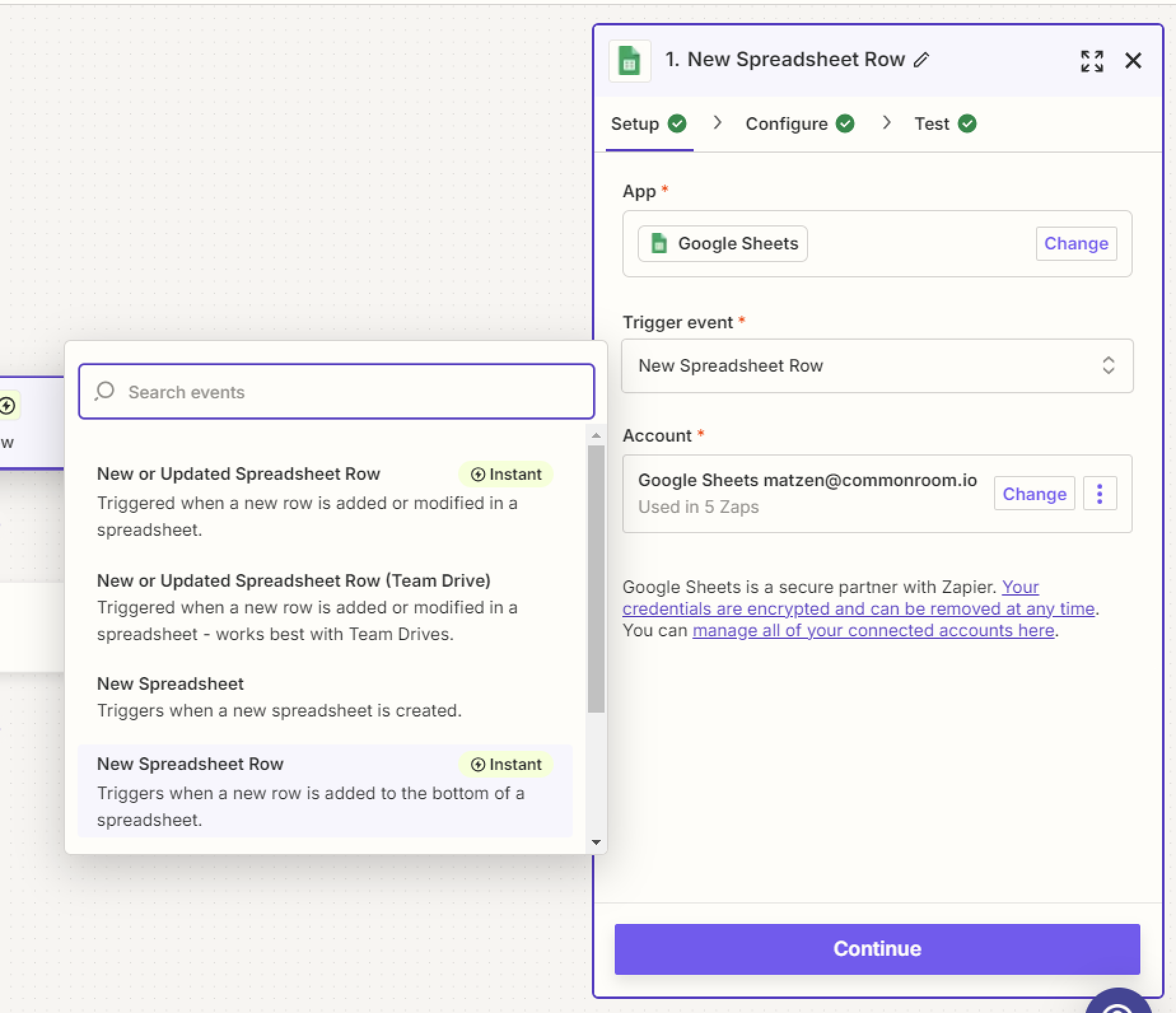
We’d then select the specific spreadsheet where our values will be pulled from.

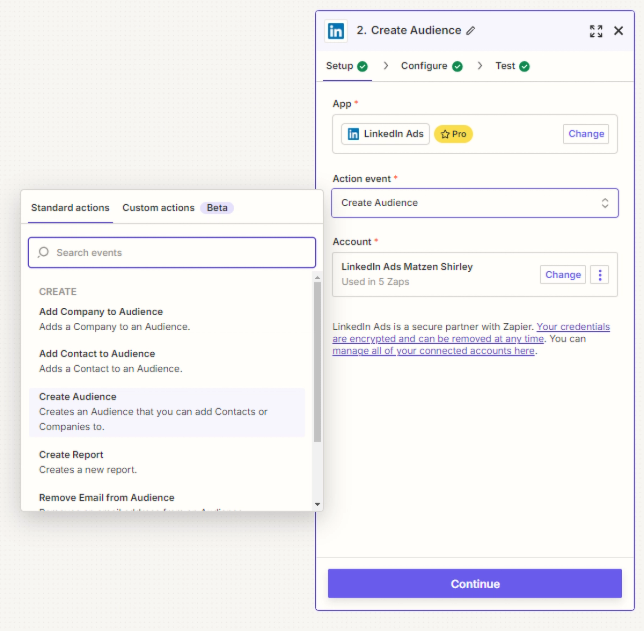
Next we’d set up our action. We’d connect our LinkedIn Ads account to Zapier and choose Create audience as our action event.
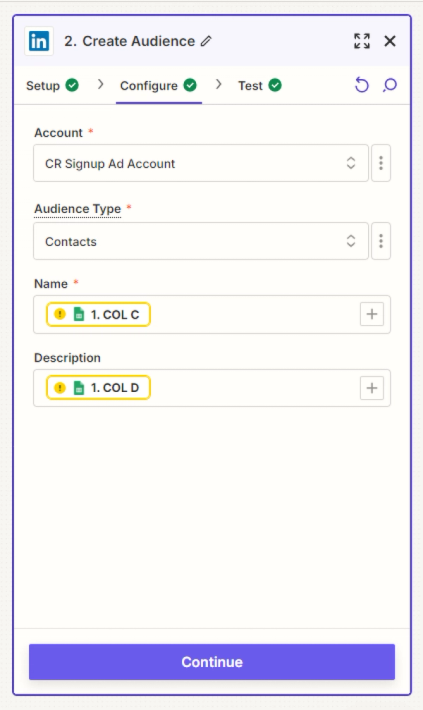
We want to configure our Zap so we’re properly mapping the correct values from our Google Sheet into the Name and Description fields in Zapier. These will both be sent to LinkedIn once our Zap is up and running.
We’d hit Publish and now we’ve got a Zap that will create LinkedIn Ad audiences for us.
Next let’s make sure we’re adding the right people to our audiences.
Alternate Step 2: Create ad targeting segment as normal
You'll create an ad targeting segment in Common Room the same way as you would if you had the native LinkedIn Ads feature, but what you'll need to adjust is how you push that segment to LinkedIn as an audience. See above for instructions on how to create an ad targeting segment in Common Room. Once your segment has been created, continue on to create the webhook workflow.
Alternate Step 3: Create webhook workflow
If we don't have the LinkedIn Ads feature, we can still auto-add contacts from our segment in Common Room to the right audience in LinkedIn via Zapier. It's just a little more work.
First we’d go back to Zapier and create a new Zap.
We’d choose Webhooks by Zapier as our trigger and select Catch Raw Hook as our trigger event.

Zapier will provide us with a URL we can copy and paste into Common Room. This will push the person-level insights captured in Common Room to our LinkedIn Ads account.

We’d go back to Common Room, navigate to Settings (the little ⚙️ icon at the bottom of the left sidebar), and click Webhooks.
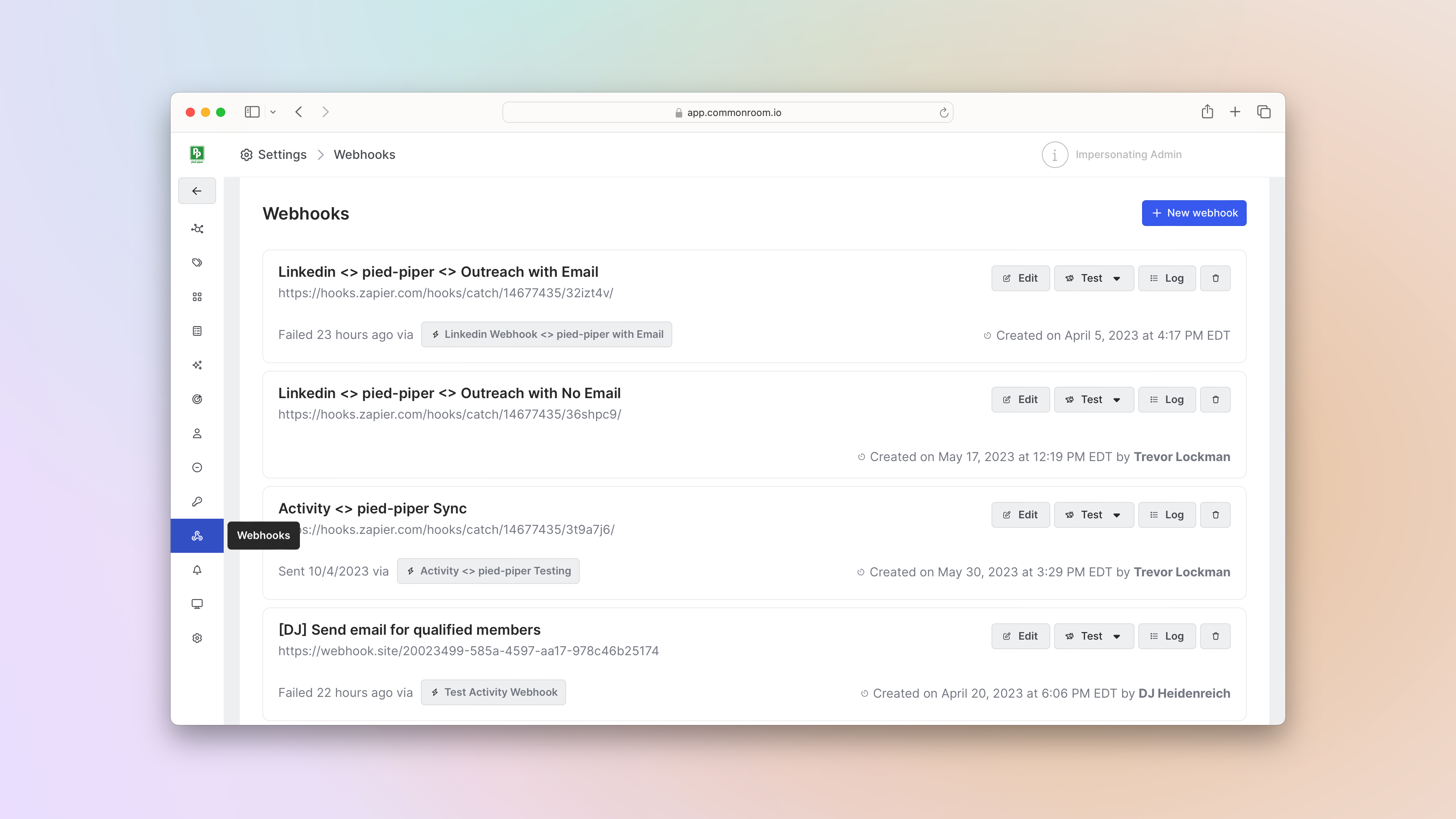
We’d select New webhook, give it a name, and copy-paste the Zapier URL into the Payload URL section.

Common Room’s webhooks feature allows you to send contact- and organization-level signals and firmographic information from Common Room to external services. This makes it easy to share real-time data between applications based on predefined events.
Once we’re done, we’d click Save changes, head back to Zapier, choose Code by Zapier as our action and select Run Javascript as our action event. This will help us parse the info from Common Room and put it in a format readable by LinkedIn.

Zapier can help you generate code via AI, but we already know what code snippet we need:
const nestedJSON = inputData.nestedJSON ||
'{}';

// Parse the nested JSON string to a JavaScript object
const data = JSON.parse(nestedJSON);

// Extract the required fields from the parsed data

output ={
primaryEmail: data.payload.primaryEmail || '',
organizationName: data.payload.organization?.name || '',
domain: data.payload.organization?.domain || '',
linkedinUrl: data.payload.linkedInUrl || '',
country: data.payload.organization?.location?.country || '',
fullName: data.payload.fullName || '',
title: data.payload.title || ''
};
LinkedIn requires both a first name and last name for ad targeting, so our next step is to add another action in our Zap that will split “Full Name” into “First” and “Last.”
We’d choose Formatter by Zapier and select Text as our action event.
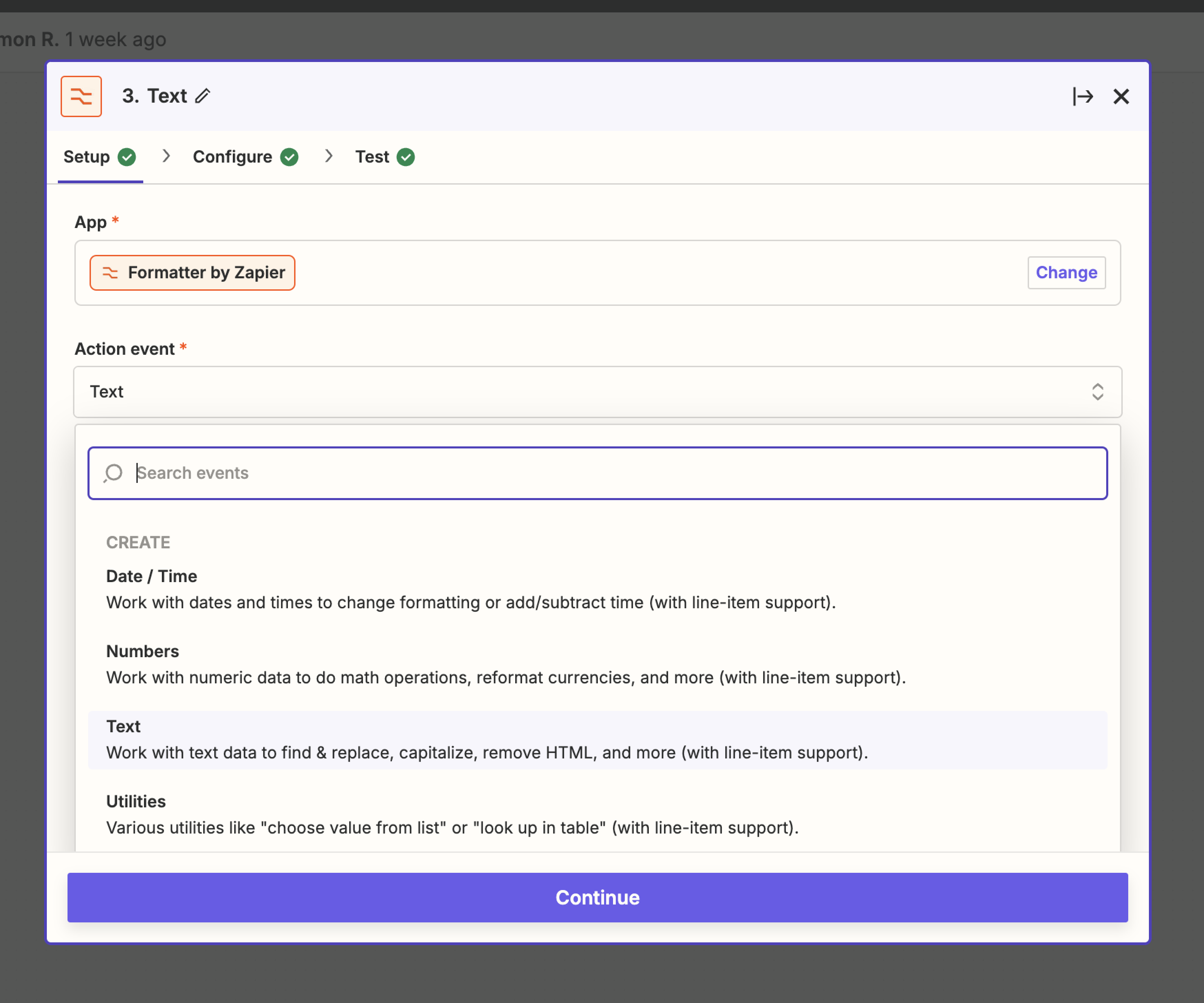
The text we need to add to the Input section is “Full Name.” Then we’d type “[:space:]” in the Separator section and select “All (as Separate Fields)” for the Segment Index section.

After we separate first and last names into two separate outputs, our final step with this Zap is to add another action.
We’d choose LinkedIn Ads and select Add Contact to Audience as our action event.

Then we’d map over the relevant fields, including the exact LinkedIn Ads audience we want contacts sent to. The more fields we fill in, the better our match rate.

Once we’re done, we’d hit Publish.

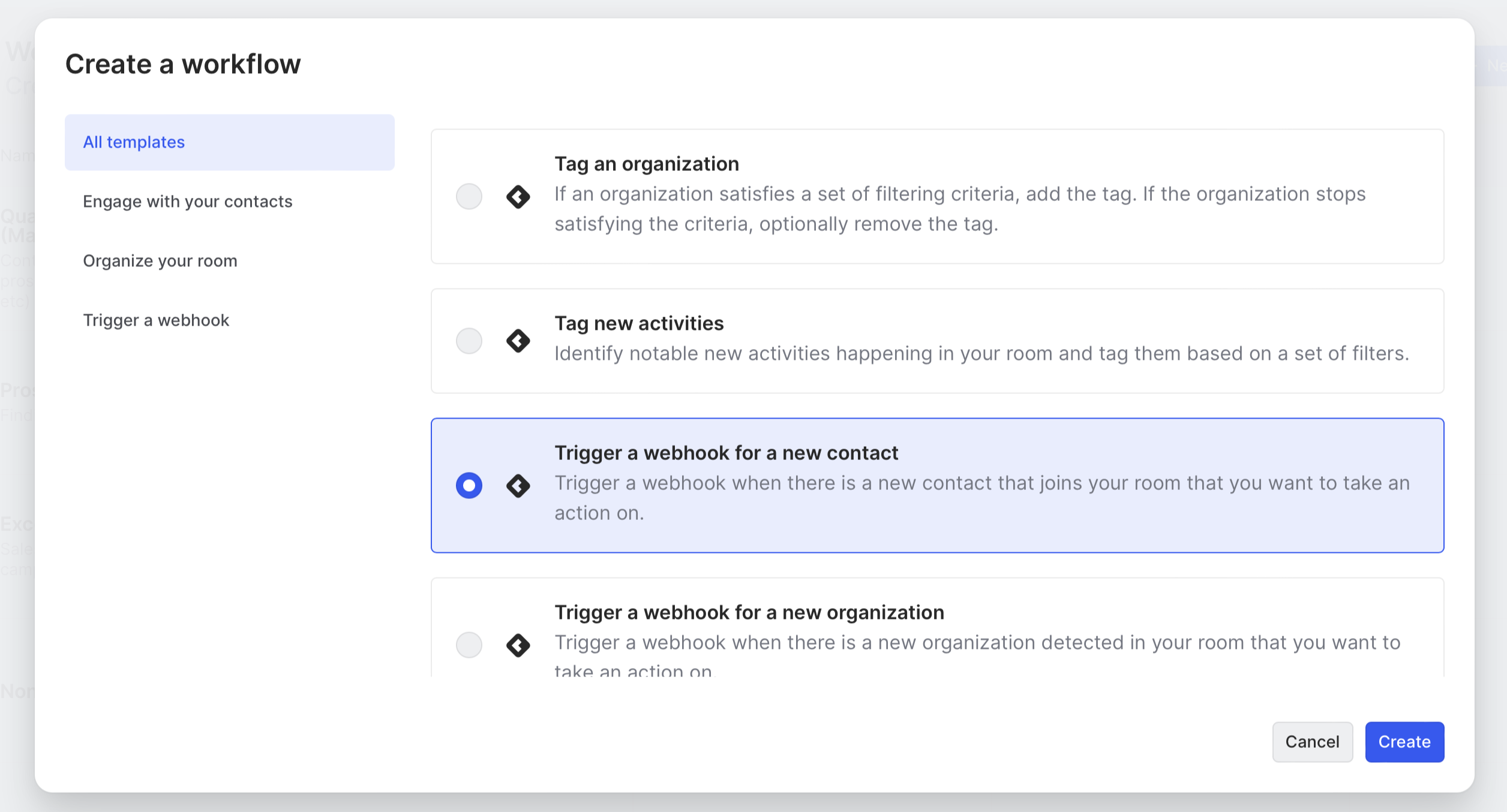
Now we’d go back to Common Room, click Back to app, and navigate to Workflows.

Then we’d click New workflow and choose Trigger a webhook for a new contact.
We’d add a filter for the segment we created earlier.
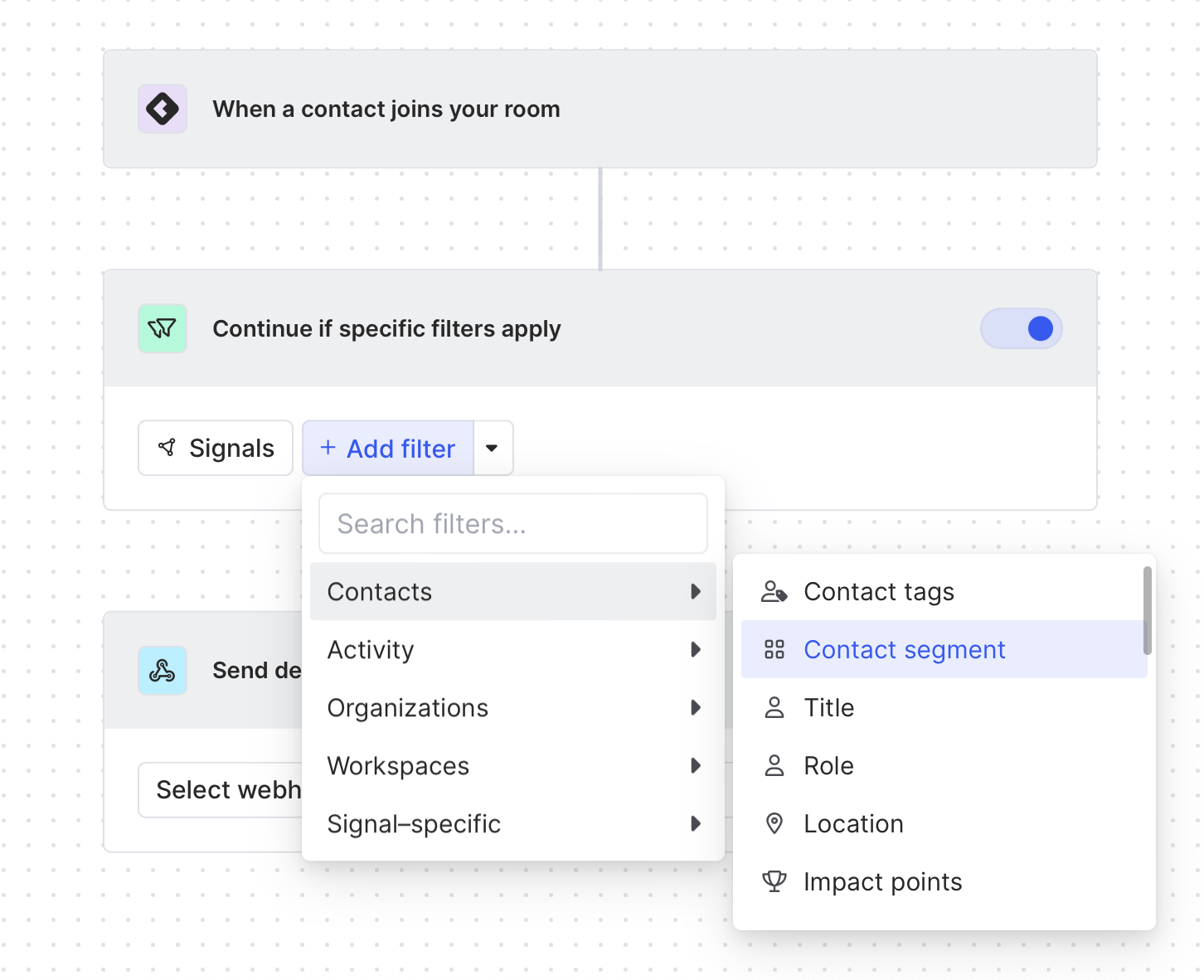
Next we’d choose the webhook we created from the dropdown menu.
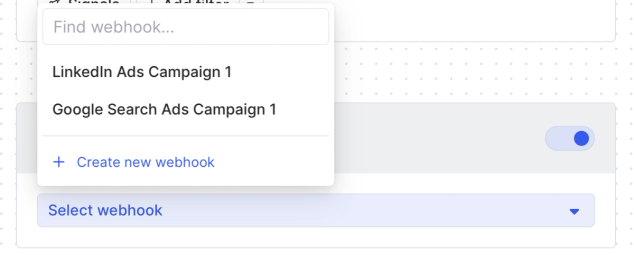
Then we'd click Save and we’re done.
Now any time a contact is added to our segment in Common Room, they’ll automatically be sent to our LinkedIn Ads audience via webhook and Zap.
Alternate Step 4: Automatically run ads against dynamic, highly targeted audiences
We can go to our LinkedIn Ads account and see the audiences that have been built out from the our new Zapier workflow.
This will likely take a few days, but we should expect to see 70-85% match rates based on the info from Common Room.
Similar to the native LinkedIn Ads experience, you can create net-new LinkedIn campaigns here that include your Common Room segment in the targeting criteria, or add that segment to an existing campaign’s targeting.
Either way, ads can now be delivered to high-intent audiences based on the signals and fit criteria captured in Common Room.
Wrapping Up
And there we have it.
Now you can not only serve up ads to prospects who match your ideal customer profile, but also focus your ad spend on people showing real interest in you and your product.
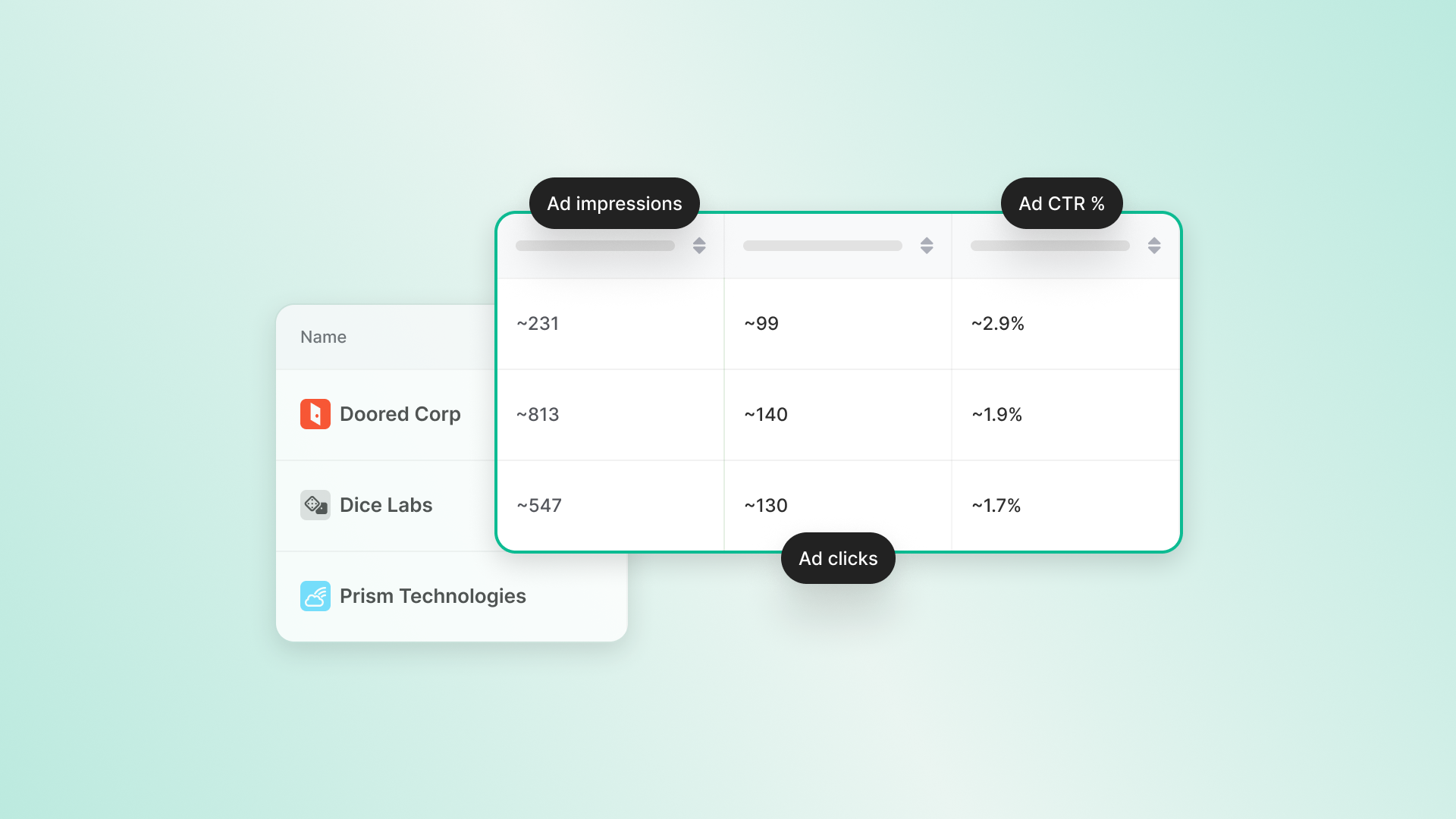
Not only that, but with the Common Room LinkedIn Ads feature, you can also ingest LinkedIn ad engagement (impressions, clicks, CTR at 7/30/90d windows + lead gen form submissions) and use those as inputs to your scoring and segmentation within Common Room audiences, creating a feedback loop where ad engagement feeds back into your targeting criteria across the sales motion.
Our Common Room LinkedIn Ads feature works as a standalone addition to Common Room, or as part of our larger revenue OS with Zoom Revenue Accelerator.
Want to see a playbook on a different topic? Get in touch. And if you haven’t already, Request a demo.
Frequently Asked Questions about Signal-Based LinkedIn Ad Targeting
What is signal-based LinkedIn ad targeting?
Signal-based LinkedIn ad targeting uses real buying signals, such as website visits, product usage, and social engagement, combined with firmographic fit criteria to build live ad audiences, instead of relying on static fit lists, retargeting pixels, or third-party intent data alone.
Is the LinkedIn Ads feature a full ABM or ad-management platform?
No. It doesn't buy media, set bids, manage campaigns, or build creative, and it's not a replacement for LinkedIn Campaign Manager. It connects paid activity to your buyer intelligence graph so your targeting and your ad spend are working off the same data.
What do I need to set up signal-based LinkedIn ad targeting?
You need a Common Room account and a LinkedIn Ads account. In LinkedIn, you must be assigned as either Account Manager or Campaign Manager, plus Company Page Admin or Lead Gen Forms Manager. If you don't have Common Room's native LinkedIn Ads feature, you'll also need a Zapier Professional plan or higher.
What's the difference between the native Common Room LinkedIn Ads feature and the Zapier workaround?
The native LinkedIn Ads feature automatically syncs a live Matched Audience to LinkedIn, adding and removing members as signals change, and feeds engagement data back into Common Room. The Zapier workaround builds audiences via Zaps and webhooks instead, and doesn't provide the same learning-loop capability, so it's recommended only if the native feature isn't available.
How is the LinkedIn Ads feature different from CSV uploads, Zapier, or CRM-only activation?
CSV lists go stale the moment fit changes. Webhook, Zapier, and CRM hops break when tokens or field mappings fail. The LinkedIn Ads feature keeps audiences live from the same filters you already trust, and shows ad warmth on accounts sales is already working, without a separate project for every list.
What is the minimum audience size for a LinkedIn Ads campaign?
LinkedIn Ads audiences must contain at least 300 contacts. Campaigns cannot run on smaller audiences.
How do I build a targeted segment for ad audiences in Common Room?
Navigate to Segments in Common Room, click New segment, select "Create new segment for contacts," and add filters based on buying signals (e.g., social engagement, website visits, product usage) and firmographic fit criteria (e.g., job title, industry, annual revenue).
What is Common Room's Person360™ feature?
Person360™ is Common Room's identity resolution and waterfall enrichment engine. It deanonymizes, merges, and enriches signals from every connected channel to reveal the identity, intent, and context behind buying signals, automatically populating segments with matched contacts.
Does LinkedIn ad engagement data feed back into Common Room?
Yes. The LinkedIn Ads feature ingests engagement data, including impressions, clicks, CTR at 7/30/90-day windows, and lead gen form submissions, and uses it as input to scoring and segmentation, creating a feedback loop for targeting.
We think you'd like these
Playbook
Prospect on LinkedIn 10x faster
Go from LinkedIn profile to pipeline in seconds.
Playbook
Prospect from any LinkedIn post
Capture the people behind posts, reactions, and comments with a click.Playbook
Find and enrich any high-fit company or prospect in a flash
Spotlight ICP-match accounts and ideal personas lightning-quick.