
SCIM Setup Guide
Last updated Sep 16th, 2026
Overview
You can provision user accounts in the Common Room application through SCIM. SCIM supports the following features:
- Creating Users
- Updating User Attributes
- Deactivating Users — User will not be able to log into Common Room
- Custom Permission Assignment — Users can be assigned Admin, Editor, or Viewer permissions
- Custom Role Management — Users can be assigned to roles created in Common Room via SCIM Groups
Common Room does not update any user attributes in Okta.
Availability
SCIM is included on Team and Enterprise plans.
SCIM Setup
Once SCIM provisioning is enabled on the General tab in Okta, navigate to the Provisioning tab.
To obtain the Authorization token, a user who is assigned a Common Room Admin profile will need to follow the steps below:
- Login to https://app.commonroom.io
- Navigate to Settings.
- Select API Tokens.
- Choose Add another account and select create a new token. Copy the token that is created.
- In Okta, navigate to the Provisioning tab.
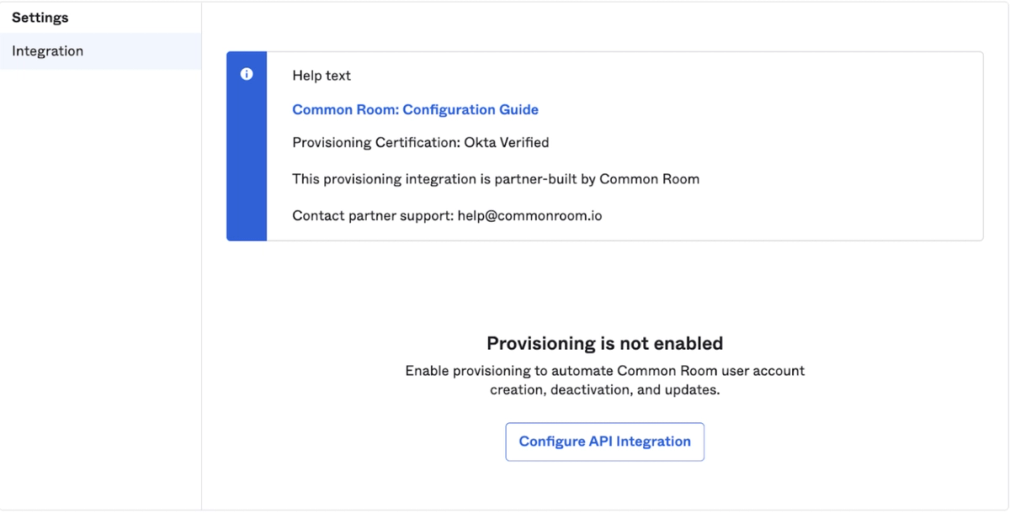
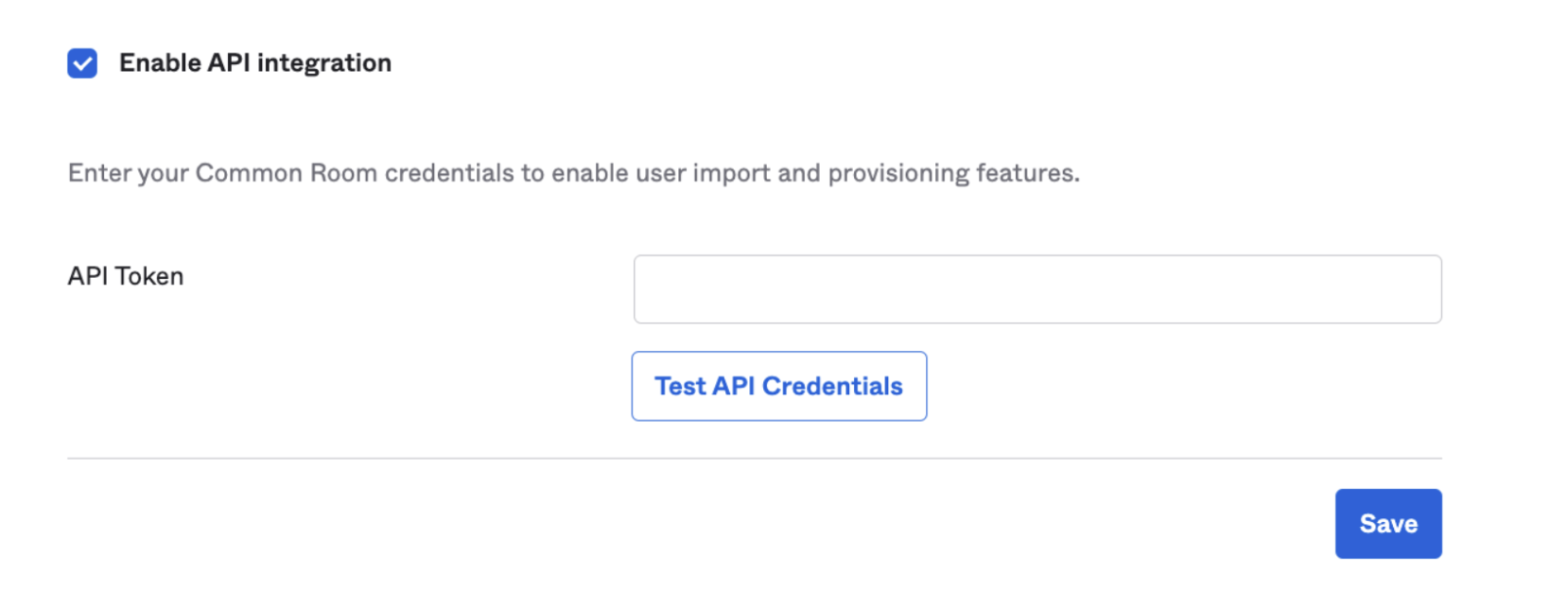
- Select Configure API Integration.
- Check the box to enable API integration, as shown below. In the section for the API token, paste the token that was generated in step 4.
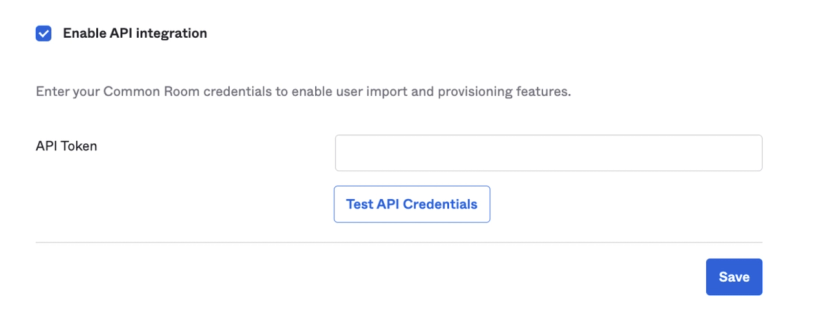
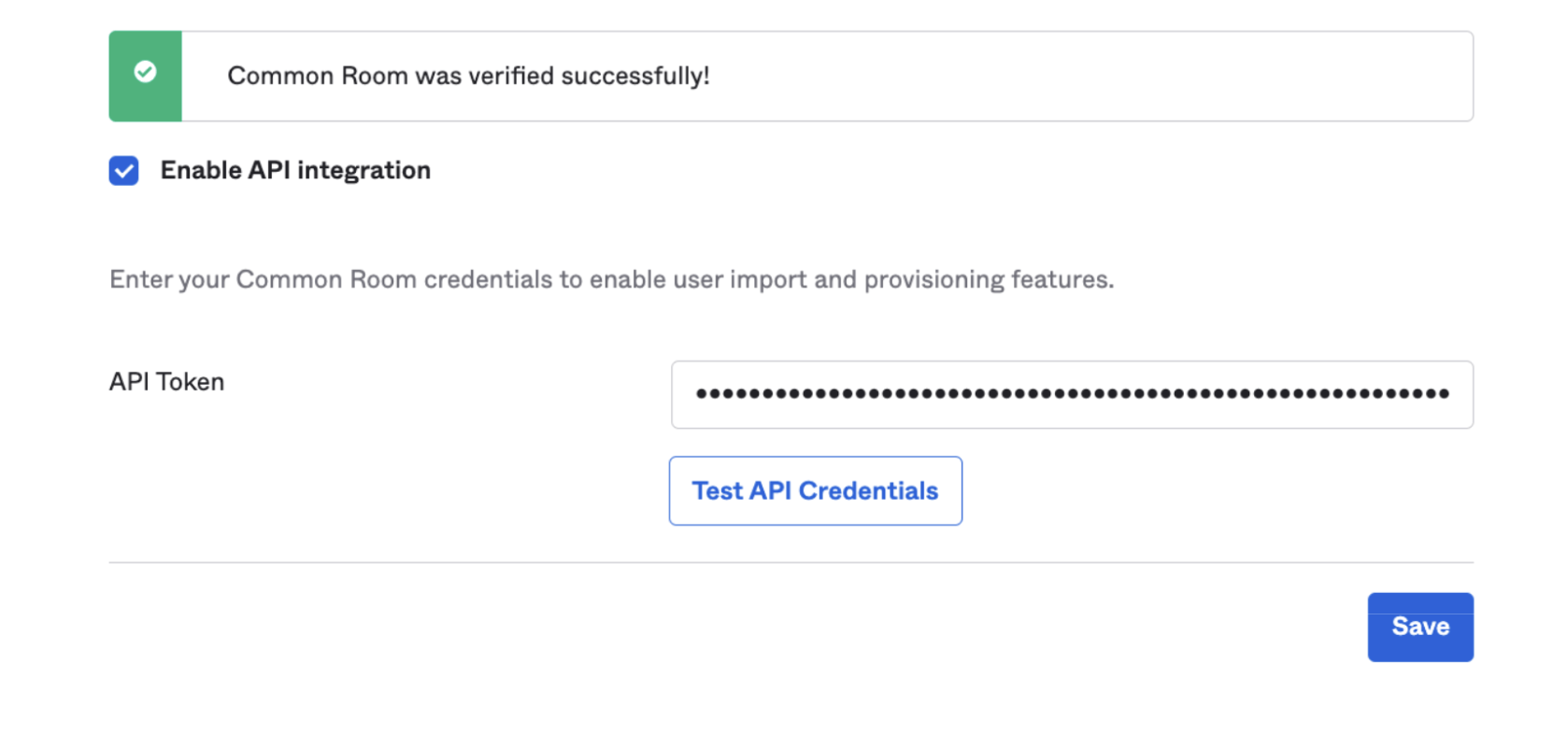
- Test API Credentials. This should display a success result.
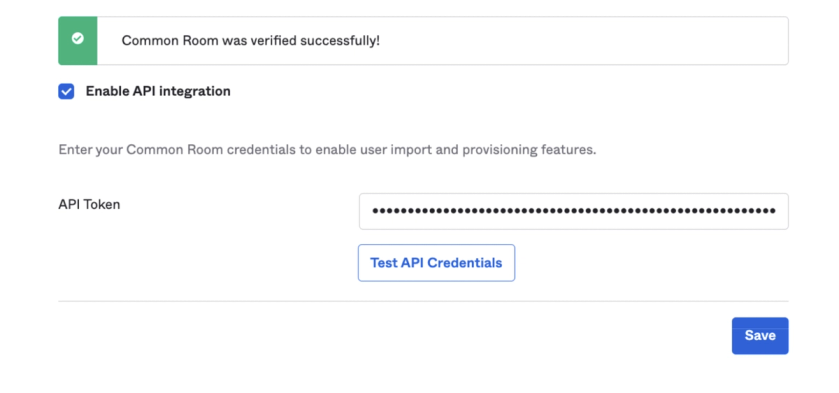
- Save the integration.
- The authorization setup is now complete. Navigate to the To App section in Okta.
- Select the following 3 options:
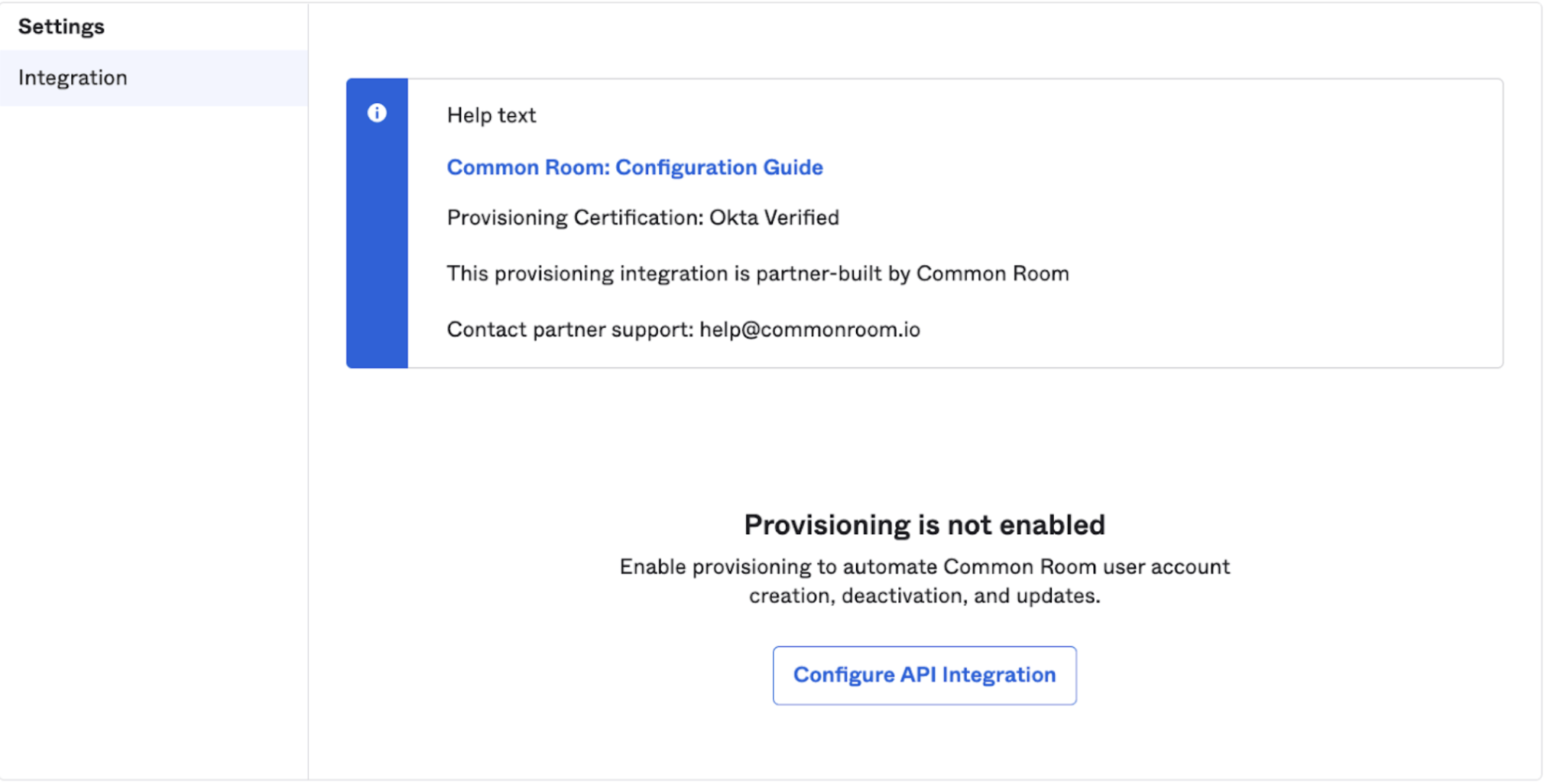
- Create Users
- Update User Attributes
- Deactivate users
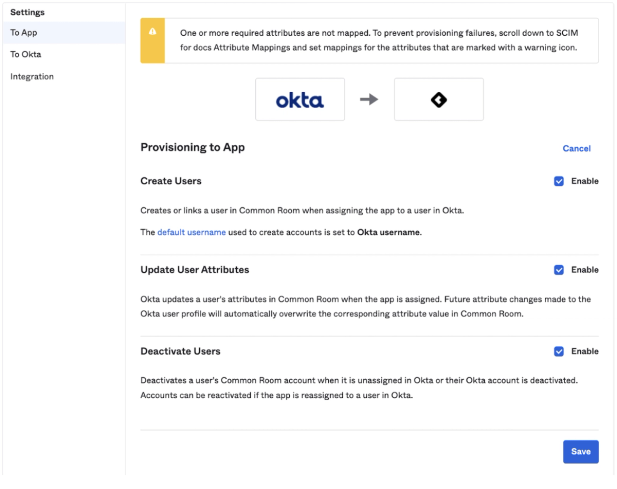
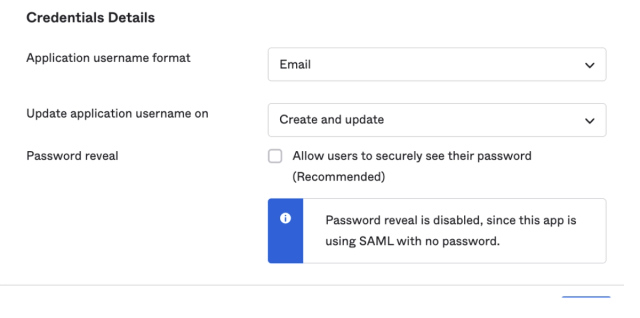
12. Save the settings. In the Sign On tab, ensure that Email is selected for the Application Username Format field.
Assigning Users
Users can be assigned to the application via the Assignments tab. The custom attribute Common Room Role is available when assigning any user to the application.
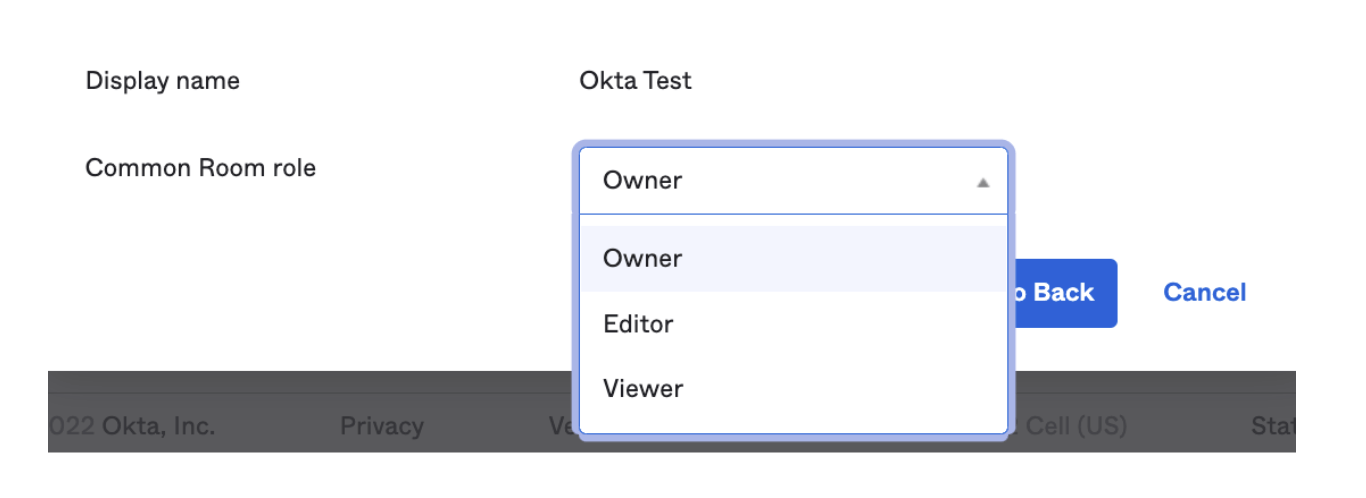
Unassigning a user will cause them to lose access to the Common Room application. The user's role will be updated to a Contact in the room.
Provisioning User Roles with Groups
In addition to user provisioning, Common Room supports managing in-app user role assignments via SCIM Groups. A Group maps directly to a Common Room role — pushing a group assigns its members to that role; removing a member from the group revokes the assignment and leaves the user without any role.
💡 Note: Okta doesn't support using the same group for app assignment and Group Push. If you are using Groups for user provisioning, separate Groups must be set up for Group Push. If your org doesn't have separate groups for app assignment and Group Push, see Okta's guidance for troubleshooting app assignment and group membership.
Set Up Group Push
- To enable Group Push in Okta, navigate to the Push Groups tab on the Common Room application and select the groups you want to provision.
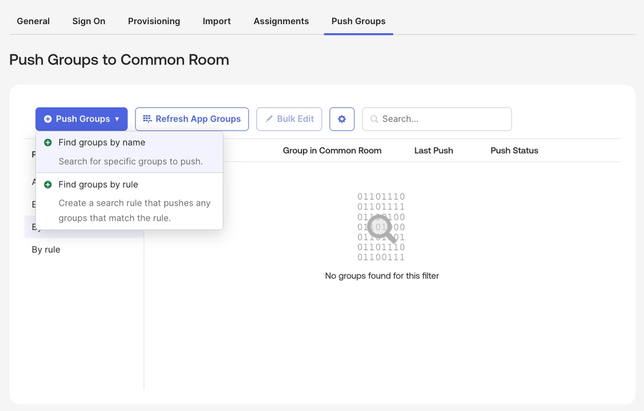
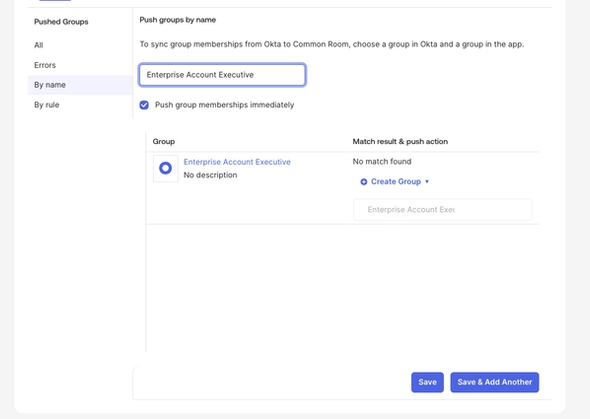
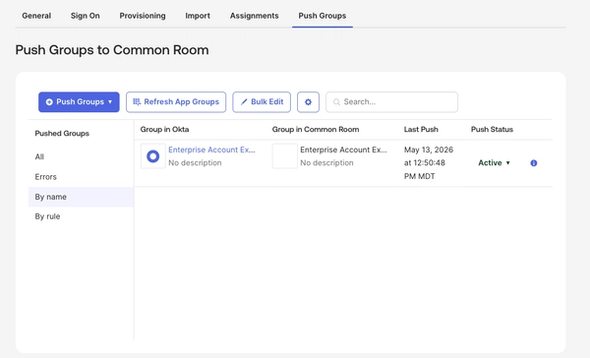
2. Find your group by name and save. A role with a matching name must already exist in Common Room before a group can be pushed. Create the role in Common Room first (Settings → Users and Roles), then push the group with a matching name from Okta. Once complete, the push status should indicate Active.
FAQ
Is updating a user's email attribute currently supported?
No, this will result in the creation of a new account for the user in Common Room.
Does pushing groups auto-create roles?
No — a matching role must already exist. Create the role in Common Room first (Settings → Users and Roles), then push the group. The group's displayName must match the role name.
What happens to users' roles when I delete a SCIM group?
Deleting a SCIM Group does not delete the underlying role. When a SCIM group is deleted (either through Okta's Deactivate or Unlink actions), Common Room revokes the role from members who were assigned through that group. The role itself remains in Common Room.
How do manual role assignments work with SCIM groups?
Manual role assignments are not managed by SCIM. If a user is assigned a role directly in the Common Room UI — outside of the SCIM group flow — that assignment is not tracked by the corresponding SCIM group. As a result:
- The user will not appear in the group's SCIM member list.
- Subsequent SCIM updates to the group (including a forced re-push) will not add, remove, or otherwise reconcile that user's role.