
Prospector
Last updated Sep 25th, 2026
Overview
With Prospector, you can easily find new contact and organization profiles that can be added to your room using Common Room's constantly refreshed database of 400M-plus B2B profiles.
Availability
Searching with Prospector is included on all plans. Taking action on Prospector contacts (adding to your room, syncing to CRM, pushing to SEP, or enriching) requires the Prospector add-on.
How to Use Prospector
Prospector can be used in three distinct ways to best fit your use case:
- Use the Prospector tab to find net new prospects and companies to add to your room as contacts and organizations.
- Use the Prospector tab in an organization's profile to search for both existing contacts and new prospects at that company.
- Use the Prospector action block as part of a Workflow to scale the automated addition of contacts to your room when organizations trigger a workflow to run.
Using the Prospector Tab
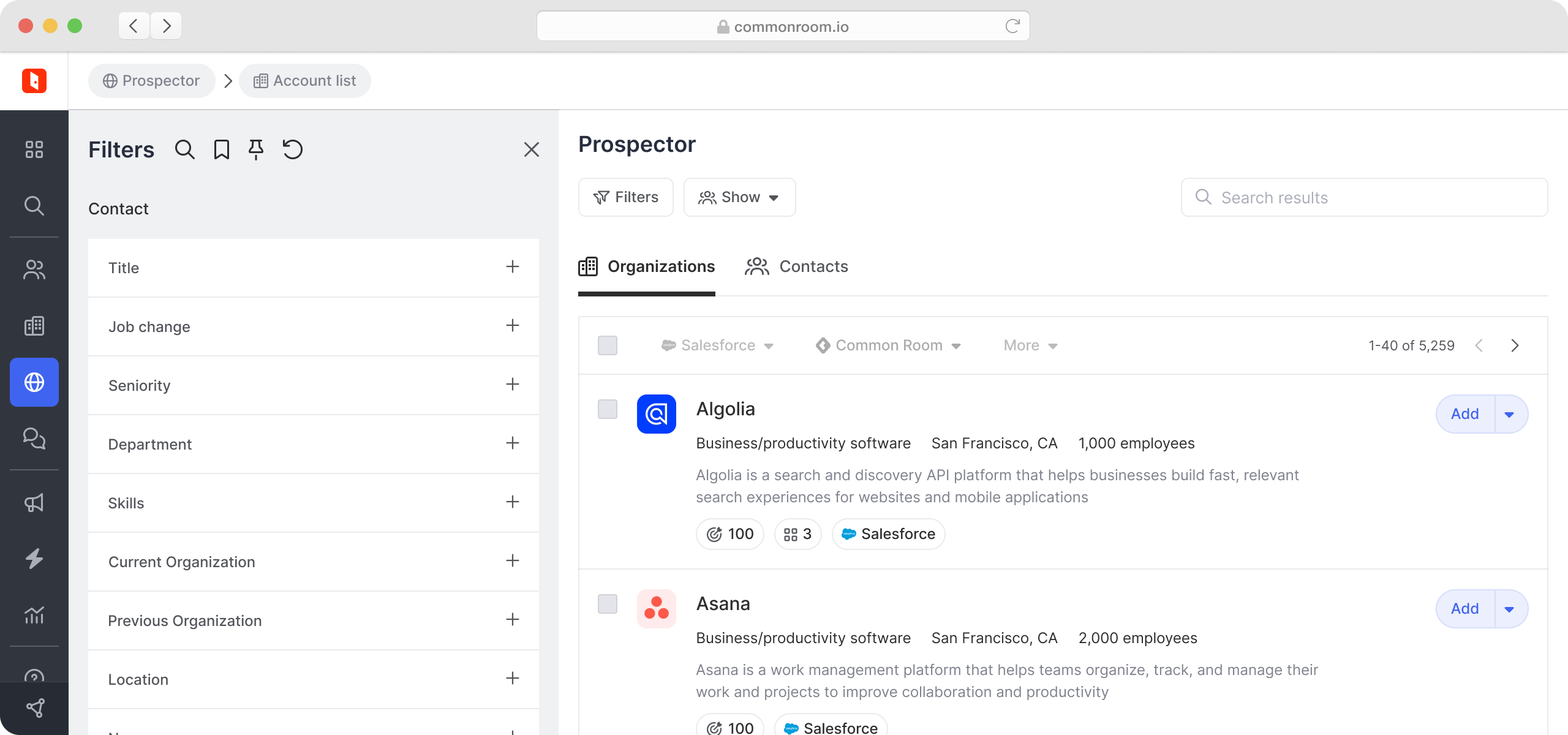
Prospector is a great way to add contacts and organizations to your room. To begin, click on the Prospector tab and build your search using filters for your Ideal Customer Profile and Ideal Persona.
Understanding Account Lists and Contact Lists
When using Prospector, you can work with two types of results:
- Account List — Shows organizations that match your company-level filters (industry, size, revenue, technographics, etc.). Use this view when you want to identify target companies first, then explore contacts within them.
- Contact List — Shows individual prospects that match your persona-level filters (title, role, seniority, etc.). Use this view when you want to identify specific people across multiple companies.
You can switch between these views using the toggle at the top of your results.
Filtering Companies
With Prospector, you have the ability to target companies using the following signals:
- Industry
- Organization size
- Annual revenue
- Location
- Technographics (technologies used)
- News filters (such as News keyword search)
- Job listings filters (such as Job listing keyword search)
Finding companies with job listings that mention your product or competitor products is a great way to uncover new opportunities that you may not have known about.
Filtering Contacts
You can use the following signals to target prospects:
- Title
- Role
- Seniority
- Location
- Job change date
- Social follower count
Using Filters Effectively
Prospector's filters are designed to be intuitive and powerful. Simply select the filter you want to apply, and choose from the available options or enter your search criteria. Filters work together to progressively narrow your results — each filter you add refines your search based on the selections you've already made.
Boolean Search in Filter Fields
Many filter fields support boolean search operators, allowing you to create precise, complex queries:
- AND — Requires all terms to be present (e.g., software AND engineer)
- OR — Includes results with any of the specified terms (e.g., developer OR engineer OR programmer)
- NOT — Excludes results containing the specified term (e.g., marketing NOT intern)
- " " — Searches for an exact phrase (e.g., "product manager")
- ( ) — Groups terms to control search logic (e.g., (developer OR engineer) AND (Python OR Java))
Important: Operators must be typed in UPPERCASE letters (AND, OR, NOT) to work correctly.
Fields that support boolean search:
- Title
- Role
- Industry keywords
- News keyword search
- Job listing keyword search
- Company name
- Location (cities/regions)
Example queries:
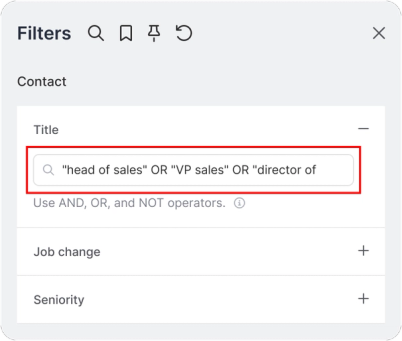
- "head of sales" OR "VP sales" OR "director of sales" — Find VP-level sales roles
- ("product designer" OR "UX designer") AND (SaaS OR B2B) NOT freelance — Target SaaS designers, excluding freelancers
- engineer AND (Python OR Go) AND ("San Francisco" OR "New York" OR remote) — Multi-location engineers with specific skills
Tips for effective filtering:
- Use quotation marks for exact phrase matching to find specific job titles
- Combine company-level and persona-level filters to narrow results progressively
- Save frequently used filter combinations as Segments for quick access
- When results exceed 10,000 records, add more specific filters to narrow your selection before adding profiles in bulk
Adding Contacts and Organizations
Once you have found a good set of prospects, you can add contacts and/or organizations to your room either one-by-one or in bulk. Note that bulk additions are capped at 10,000 records per action. If your filters match more than 10,000 results, you'll need to add additional filters to narrow your selection before you can proceed with the bulk add.
Once prospects and companies are added to your room, they will be enriched with additional data including verified emails, phone numbers, and job details. This enrichment process typically completes within a few minutes. While enrichment is in progress, you can still view and work with the newly added contacts and organizations.
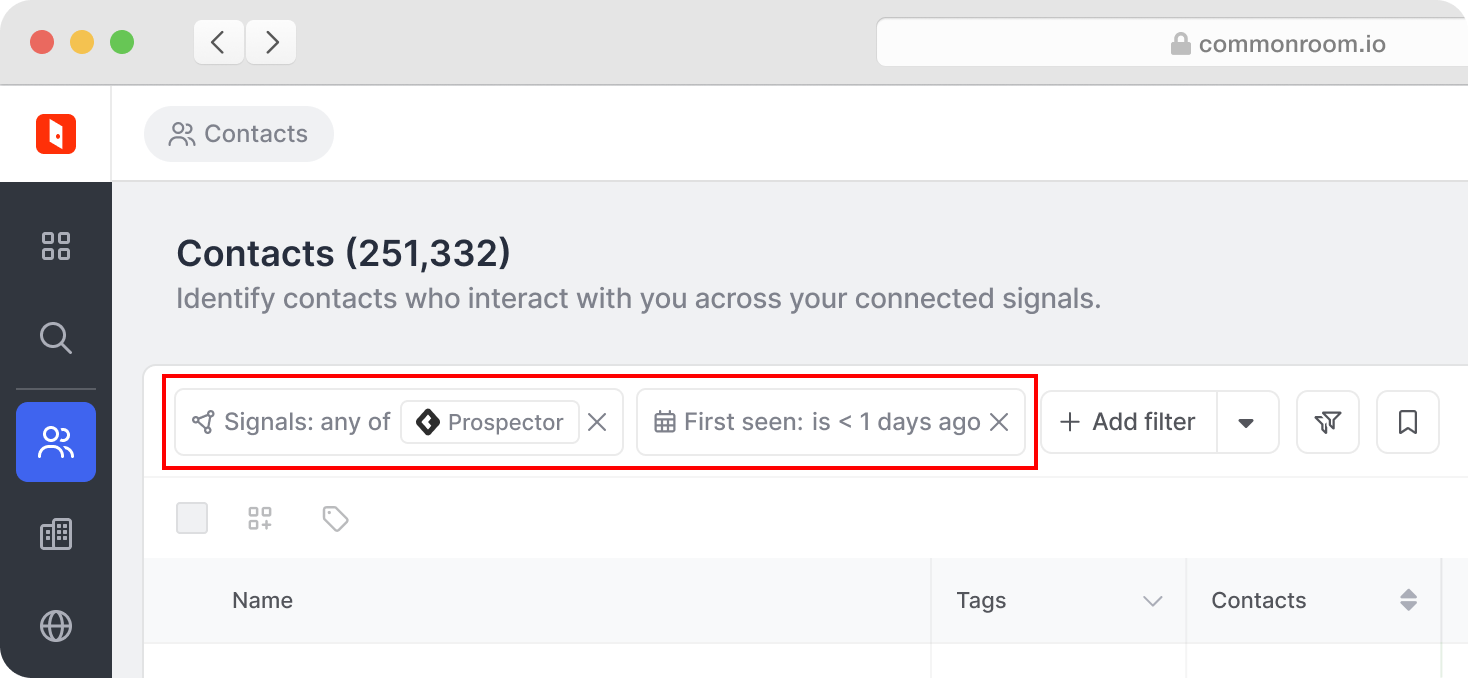
Once new contacts and organizations have been created you can go to the Contact or Organization tab to view them. To easily find contacts or organizations that have been added from Prospector, you can set a filter where Signal = Prospector.
Using Prospector from an Organization's Profile
When viewing an organization's profile, you can use the Prospector tab to find both existing contacts in your room and new prospects at that company.
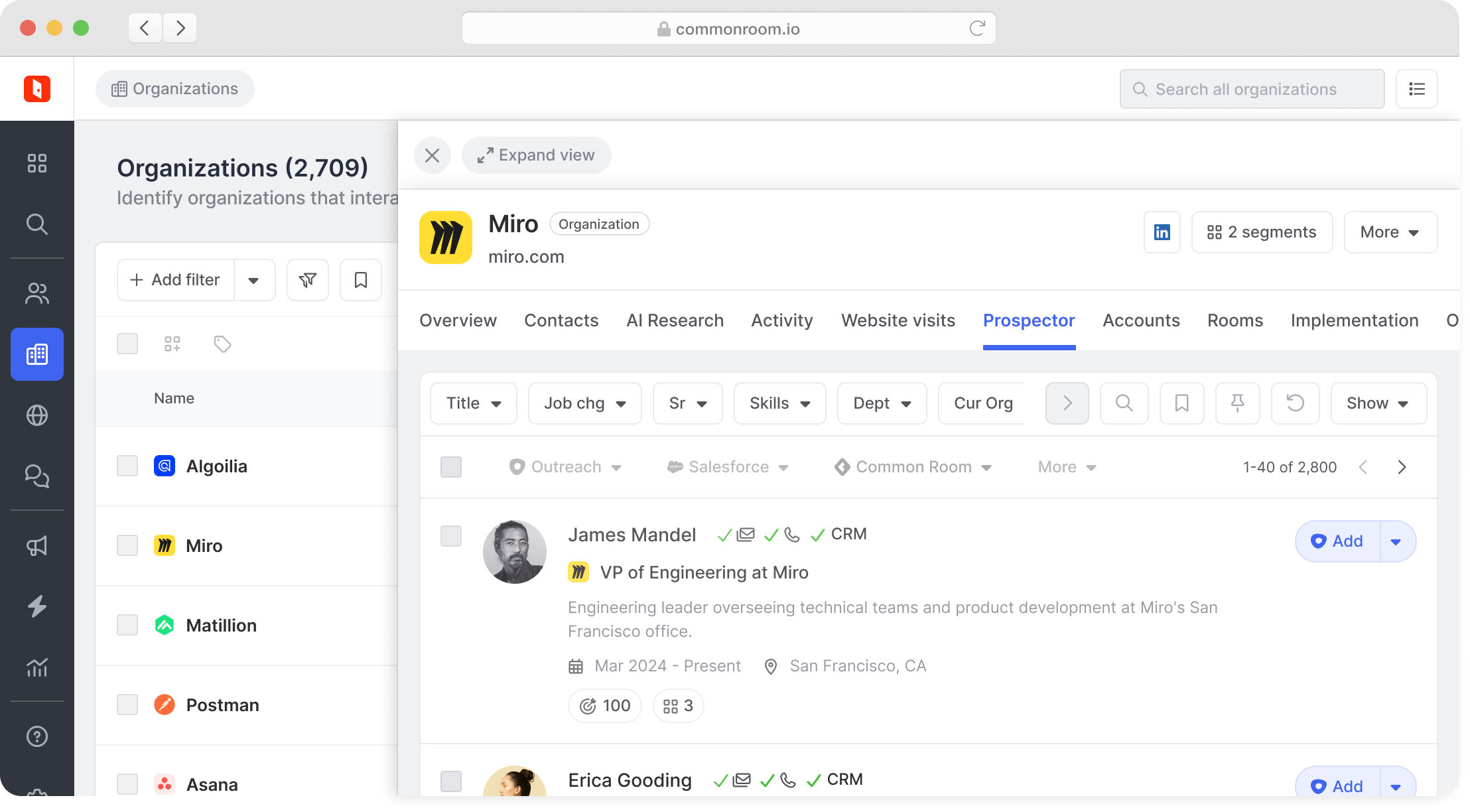
- Navigate to the Prospector tab on the organization's profile page.
- In the Prospector tab you will see a combined view of contacts already in your room and potential new prospects at this organization. Use filters to refine your search by Job Title, Role, Seniority, Job Change Date, and LinkedIn follower count.
- New prospects shown on the Prospector tab are not formally part of your room until you add them.
- Once Contacts are added to your room, we will create a new signal, Prospector, and add all Contacts under that signal. Signals can be used as quick filtering criteria when navigating through Contacts and Orgs.
Using Prospector as Part of a Workflow
If you would rather add Contacts to your room using Prospector in bulk via automation, you can use a Workflow.
- Create a new workflow from scratch.
- Select a trigger that is focused on organizations (e.g. New organization joins your room)
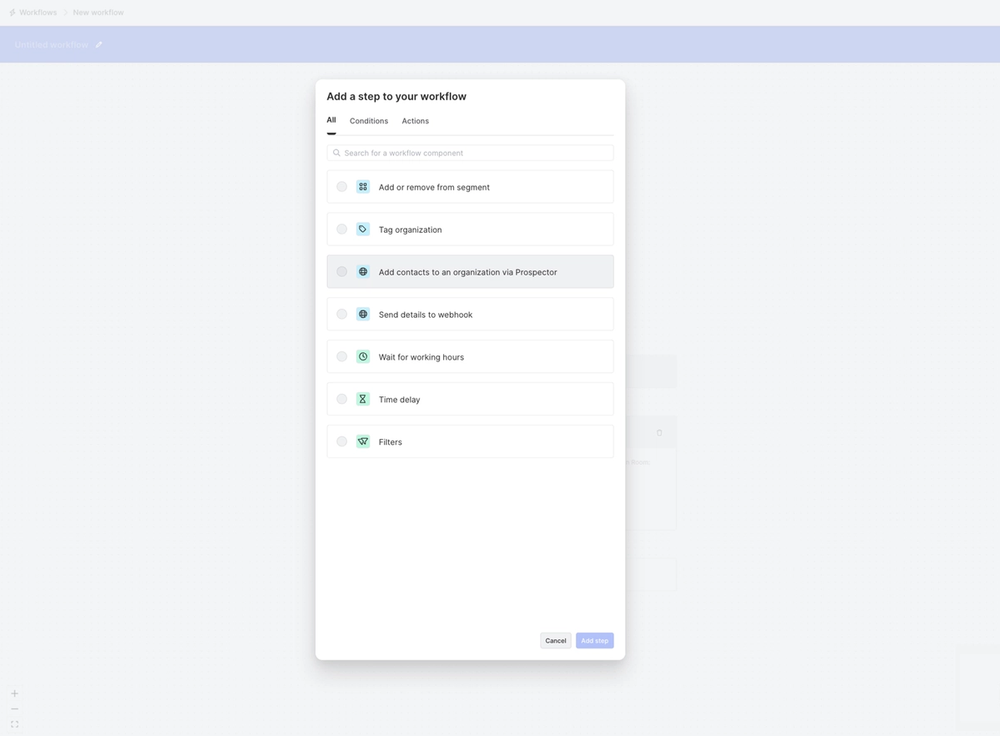
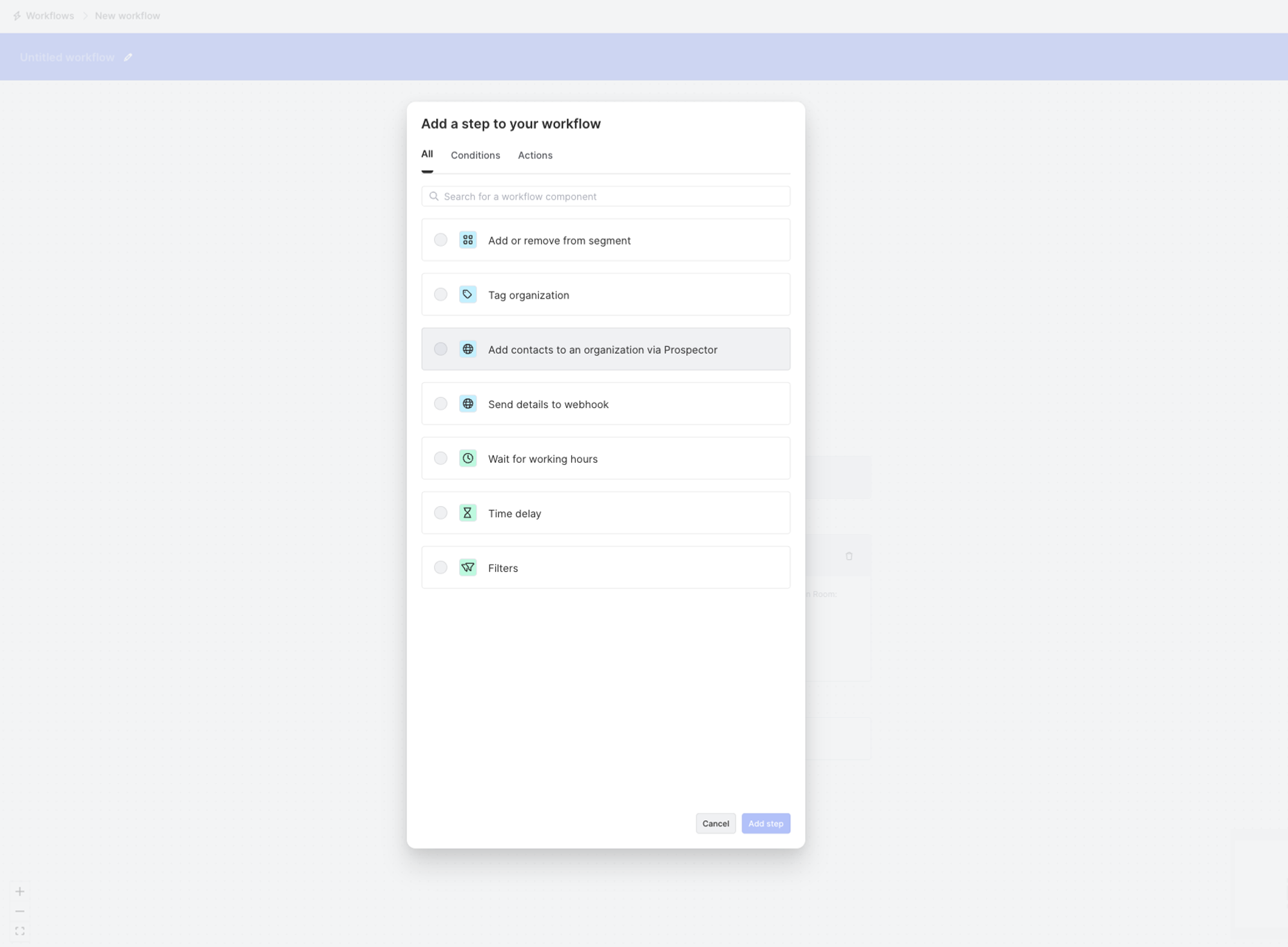
- Add a step to your workflow and select Add contacts to an organization via Prospector
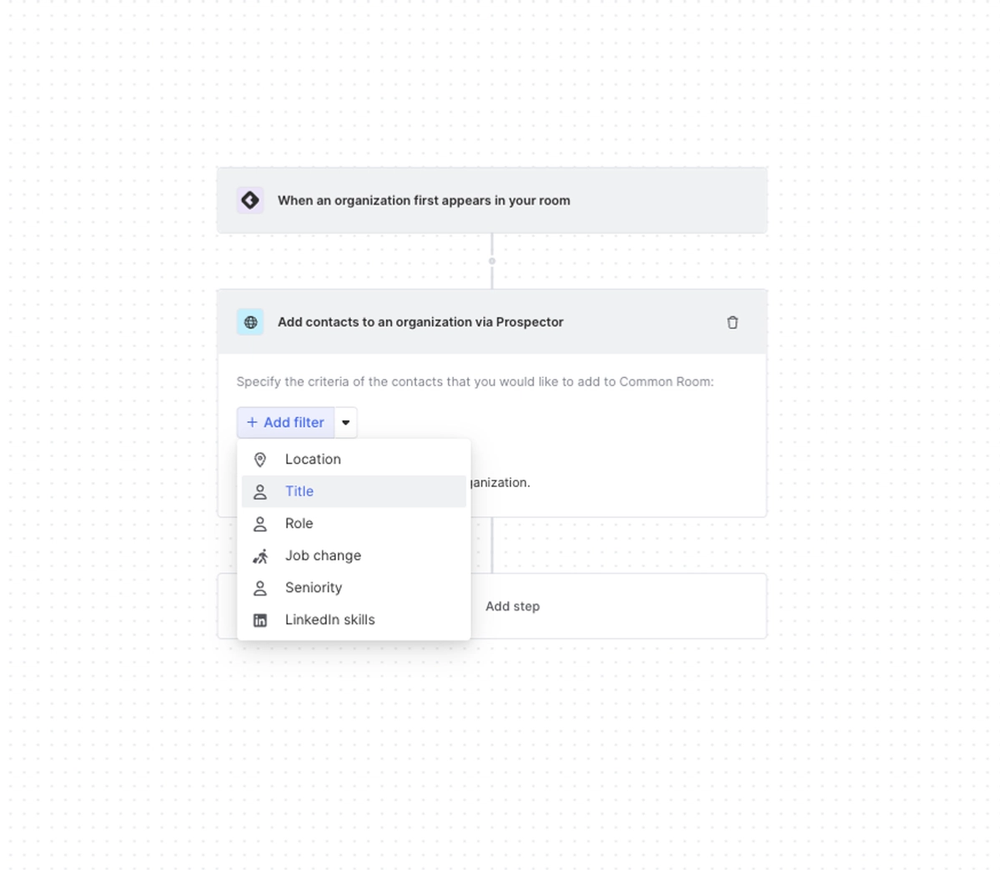
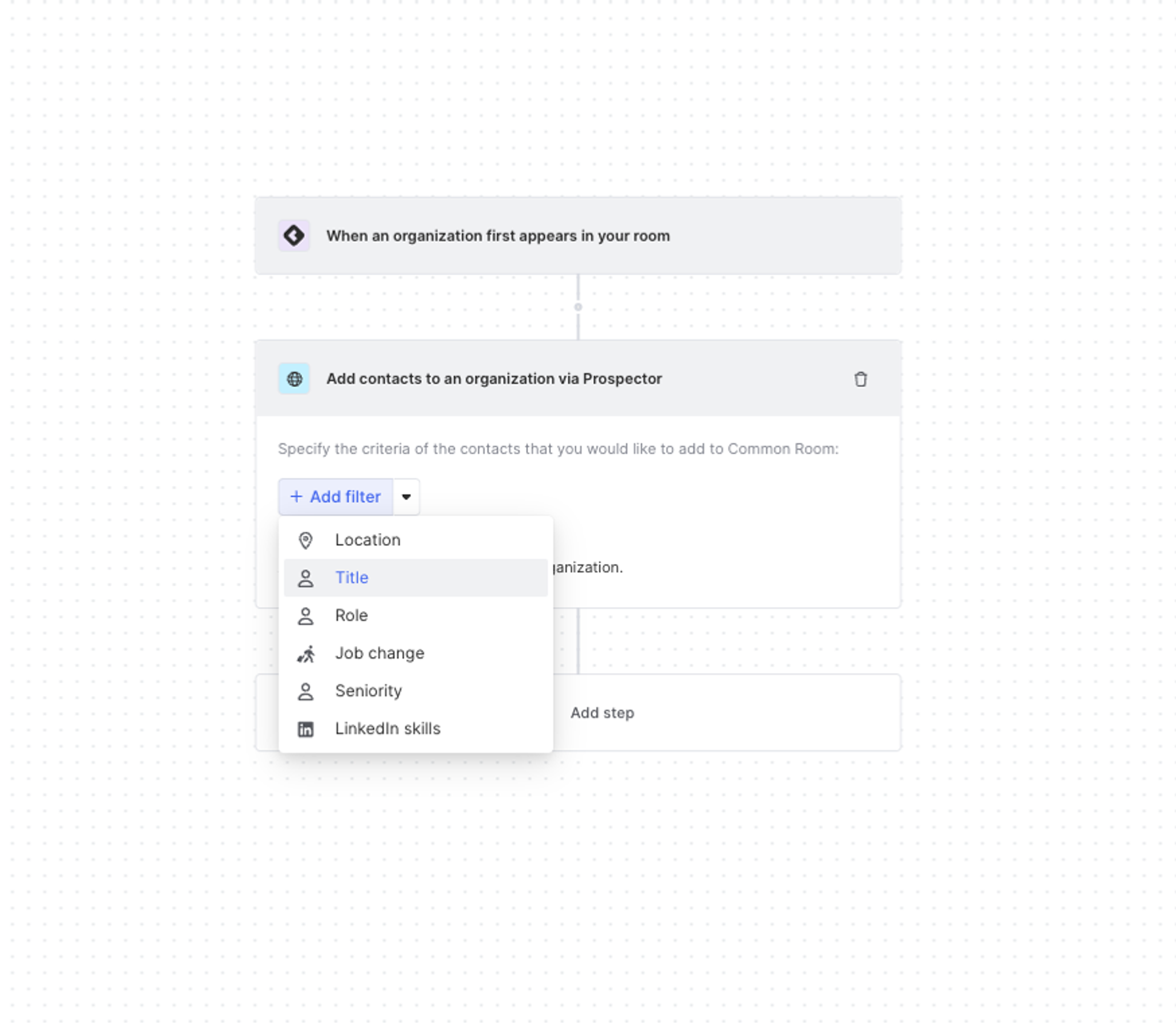
- Use the filters to define which types of contacts you would like to be added (e.g. job title, location, etc.)
- Select the max number of contacts that the workflow will add to a given organization.
Note: There is a limit to prevent cases of too many contacts being added that match filter criteria.
Once you have completed those steps, the workflow will run on its daily cadence and prospects will be added to your room in an automated fashion.
FAQ
Where is Prospector data sourced from?
Prospector is sourced from LinkedIn and enhanced with various other sources, this is a 200M+ B2B contact database that is continuously updated.
Is Common Room surfacing primarily personal emails for new contacts?
We aim to find all possible emails we can, but mark the ones that are primary/verified based on our models + email validation tooling.
Does your database primarily source personal domains or work emails?
Our prospector database primarily links to LinkedIn profiles, and we fetch emails in real-time based on when you add them as prospects. For each instance, the source of emails depends on the signal connected, but for any signal that has a personal email we try to enrich with a work email (we don't prioritize going the other way around - if your signal pulls in a work email already we don't try to fetch personal emails for that profile).
How can I get phone numbers for prospects?
Phone numbers are available through premium enrichment when you add contacts from Prospector. For more details on phone number enrichment and our partnership with FullEnrich, see our blog post: Common Room + FullEnrich + Smartlead: The Complete Outbound Stack.
Am I able to request my information be removed from the prospecting database?
Residents of California, Colorado, Virginia, and Connecticut in the United States as well as the EU have the right to opt out of the sale of any personal information as well as the "right to be forgotten" for deletion of their data. If you wish to request data deletion, just fill out the form here: Remove My Info
Deletion takes several days as the request is processed across multiple systems.