Team Segments
Last updated Sep 25th, 2026
Overview
Team segments allow users to create a centrally controlled and managed segment that they can assign team members to. When a team member uses the team segment, their view of the contacts and orgs within the segment will be personally tailored to them.
Setup
- To create a team segment, navigate to the Common Room Settings page and then navigate to the Segments tab. Select + New segment and choose the type of segment you would like to create: Contact, Organization, or Account.
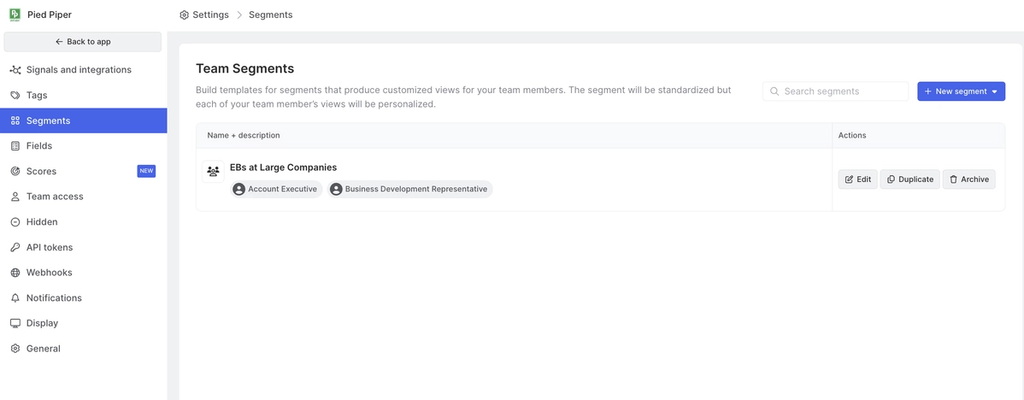
- Select "+ New segment" and choose if you would like to create a contact or organization segment.
- Once selected, you'll navigate through a sequence of four steps to complete. Each step will have a few key elements you'll need to input to create your team segment. These 4 steps are as follows:
- Info
- Assignment
- Settings
- Columns
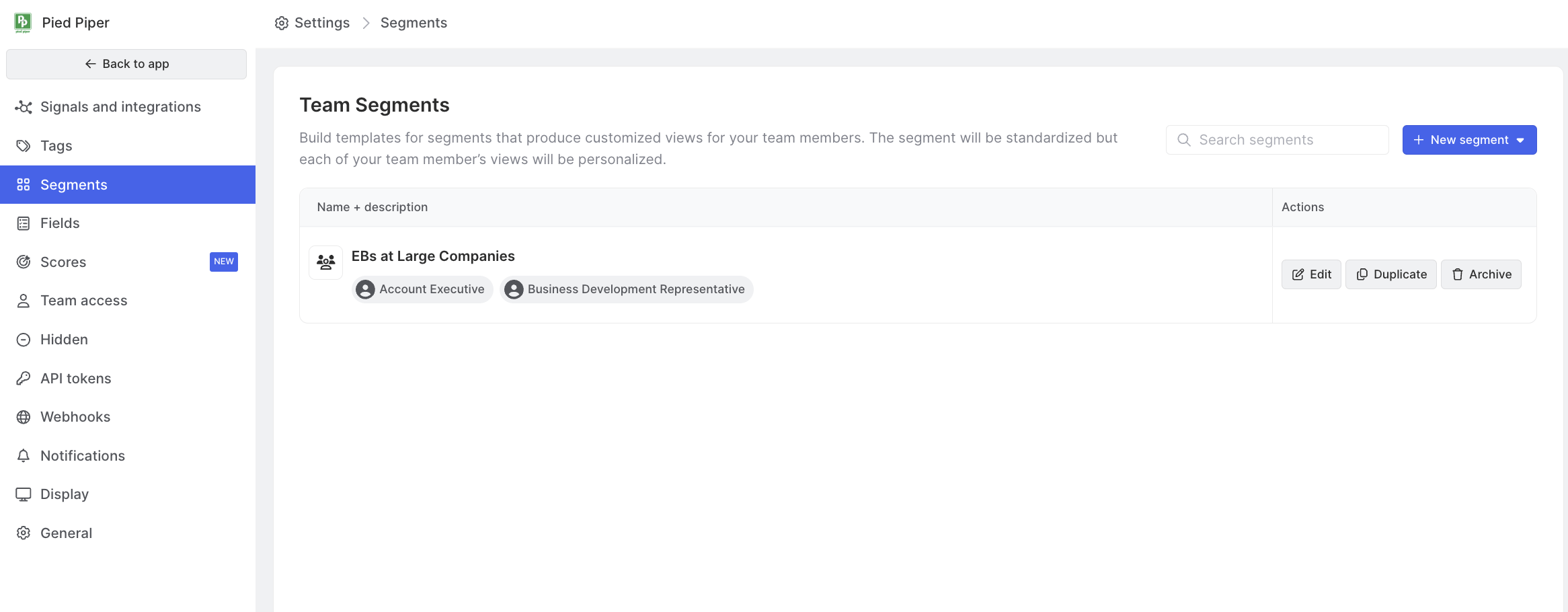
Most aspects of a team segment are the same as a standard segment except for the "Assignment" step. In this step, you will need to choose a field that indicates "ownership" of the records in your segment that aligns to the team members for which you are creating the team segment.
- For Contact segments: a common ownership field is a field like "Contact Owner" synced from Salesforce.
- For Organization segments: a common ownership field is a field like "Account Owner" synced from Salesforce.
- For Account segments: the Account Owner field (synced from Salesforce) is the recommended ownership field. This directly maps to the rep who owns each Account in Salesforce, ensuring each team member sees only their assigned Accounts and the Contacts within them. (Requires Salesforce integration — HubSpot support coming soon.)
This field must map both to your team members in Common Room and to the records in your segment.
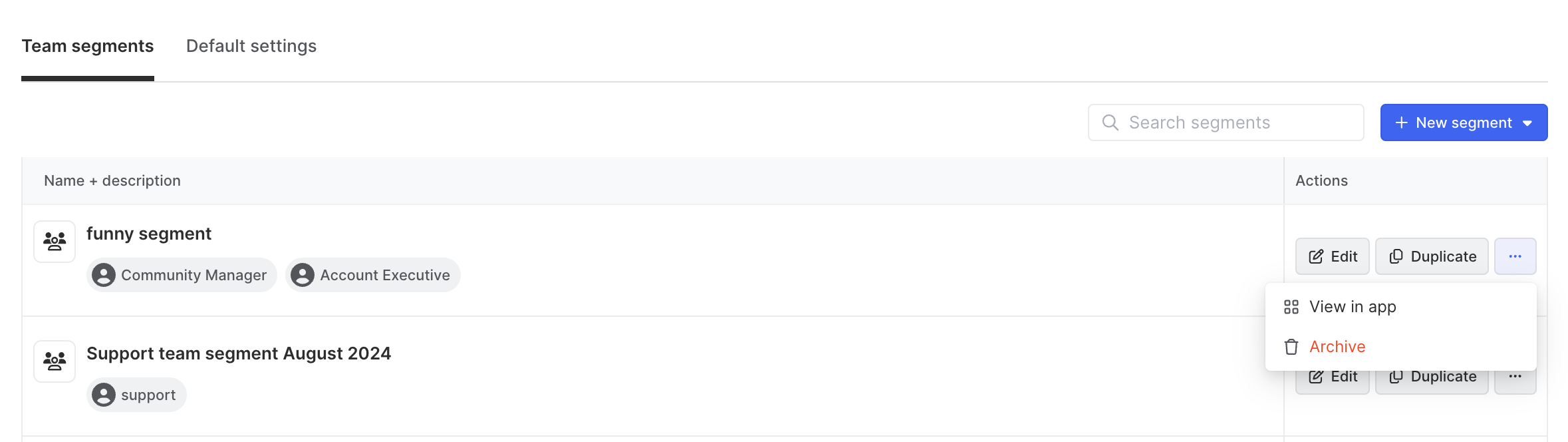
- To go from creating and editing your team segment to seeing it in action in the platform, select the "More actions" icon to the right of your team segment in the "Segments" section of Common Room settings. From there, choose "View in app" from the drop down. You will then be directed to the segment's profile.
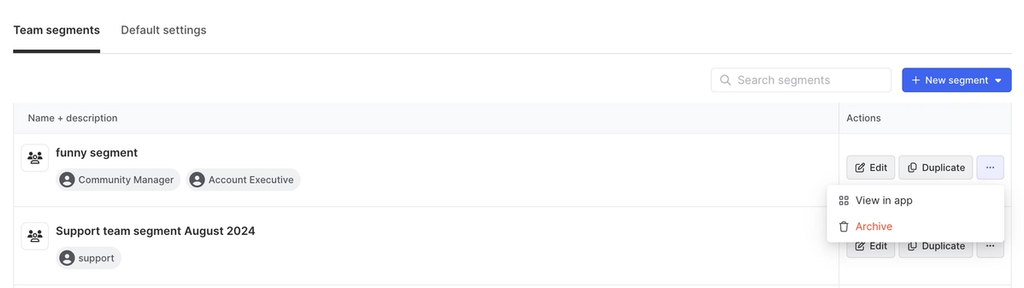
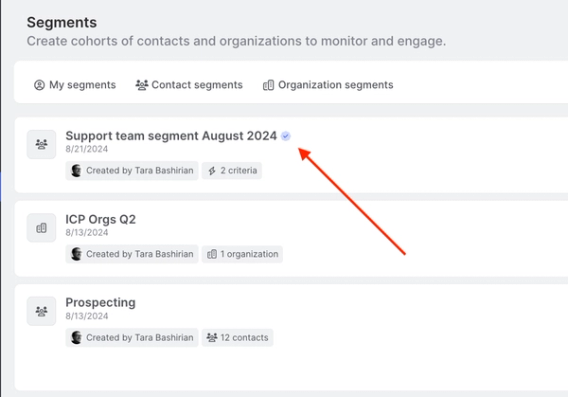
Your team will be able to identify a segment is a Team segment, as it will have a blue checkmark to the right of the segment's name, as shown below:
Account Team Segments
Account team segments are the recommended way for GTM teams to give each rep a personalized, managed view of their book of business.
When you create an Account team segment, each rep assigned to the segment sees only the Accounts they own (based on the ownership field you select, typically "Account Owner"). Within their assigned Accounts, they also see the Contacts associated with those Accounts, giving them a full view of their pipeline and the people they should be engaging.
The Contacts each rep sees are determined by Contact-Account pathing — the set of rules Common Room uses to link Contacts to Accounts across different data sources (Salesforce records, email domains, and group memberships). By default, team segments surface Contacts with a direct Salesforce link. You can widen the scope to include email-domain or group-matched Contacts depending on your team's needs. Learn about Contact-Account Pathing →
Creating an Account Team Segment
- Navigate to Settings → Segments.
- Click + New segment and select Account.
- Complete the four setup steps:
- Info: Name your segment and add a description.
- Assignment: Select Account Owner (or another CRM ownership field) as the assignment field. This maps each Account in the segment to the rep who owns it.
- Settings: Configure auto-add and auto-remove rules (e.g., automatically add Accounts where Stage = "Closed Won" or remove Accounts that have churned).
- Columns: Choose the default columns teammates will see when viewing this segment. You can also configure the Contact-Account path scope here — whether to show only direct Salesforce Contacts, or also Contacts matched via email domain or group association. See Contact-Account Pathing → for guidance on choosing the right scope.
- Click Save.
Viewing Your Account Team Segment
To go from creating or editing your Account team segment to seeing it in the platform, select the More actions icon to the right of the segment in your Segments settings. Choose View in app from the dropdown. You will be directed to the segment's profile.
Team members can identify a Team segment by the blue checkmark to the right of the segment's name.
Each rep viewing the segment sees:
- Only the Accounts assigned to them via the ownership field.
- The Contacts associated with those Accounts, filtered to current employment.
- Columns and fields configured by the segment admin.
Segment Tasks
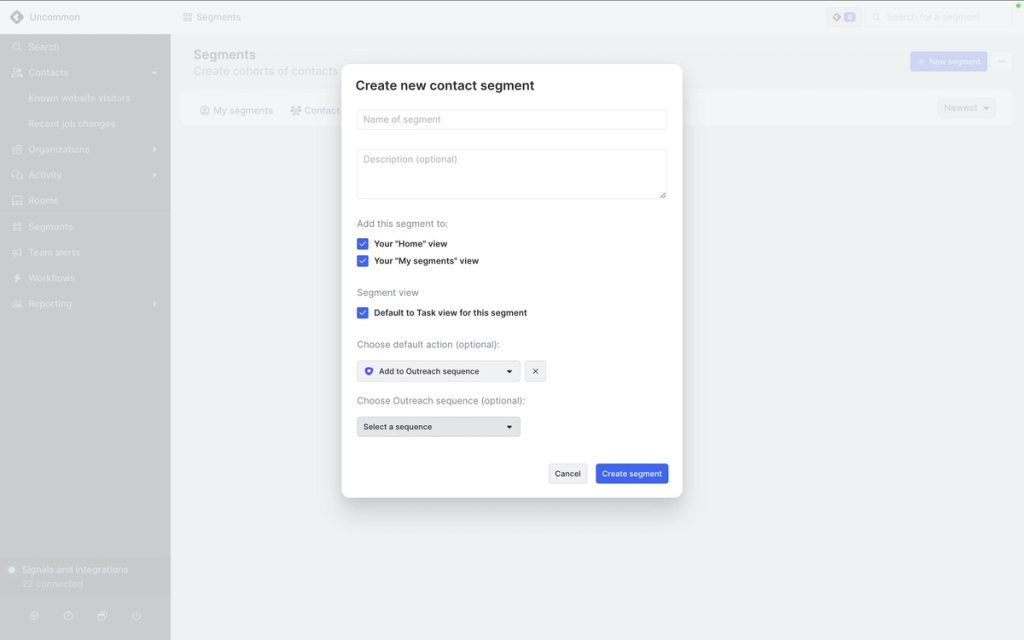
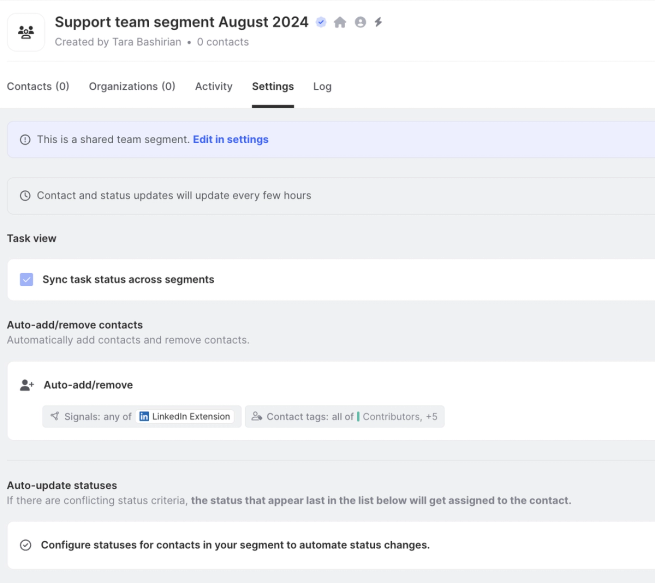
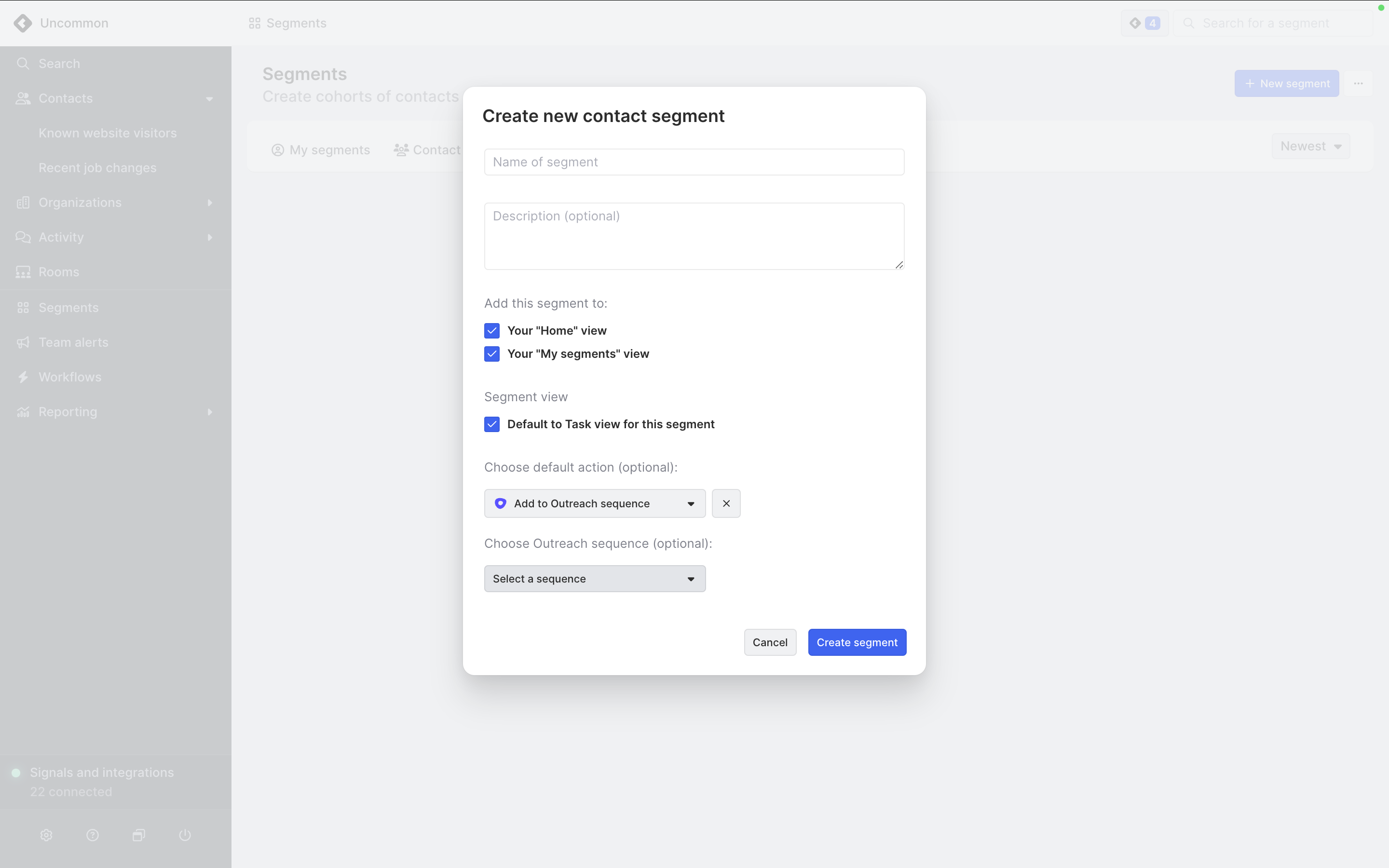
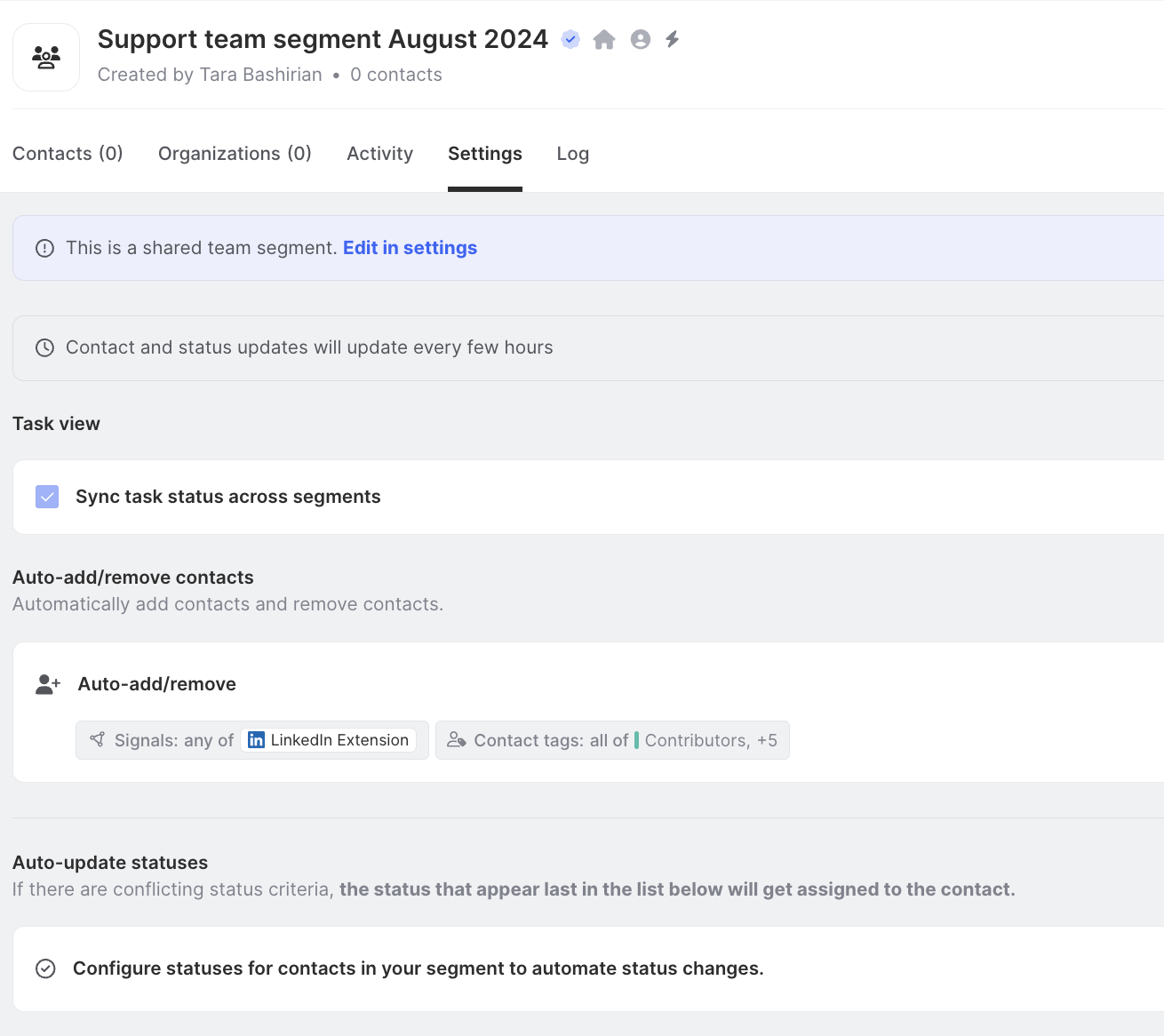
You can create a default action that users should take from a segment. To do so, set up the action during segment creation in one of two places.
- Set the default action from the Create new segment modal.
- Set the default action from the Settings screen of a segment.
FAQs
How do alerts work with team segments?
Individuals can choose to turn on alerts for a segment. Those alerts will only be relative to their assigned contacts and organizations within the segment. This will not turn on alerts for all team members.
Can I create a team segment based on Accounts instead of Contacts or Organizations? Yes. When creating a new team segment, you can now choose Account as the segment type. Account team segments are ideal for sales teams who manage a book of business in Salesforce. The Account Owner field (or another CRM ownership field) is used to assign each Account in the segment to the appropriate rep.
When I view an Account team segment, which Contacts are shown? Within an Account team segment, each rep sees the Contacts currently associated with their assigned Accounts. "Currently associated" means Contacts whose employment, email domain, or Salesforce data links them to the Account as a current employee. Contacts who previously worked at the Account but have since moved on are labeled as "outdated" and can be filtered.